Vehicle statuses help your team understand whether a unit is available for assignment or temporarily unavailable. A vehicle’s status can be updated from either the Mapping screen or the Administration menu.
Common vehicle statuses include:
- On Hold
- Hard Hold
- Out of Service
The available options may vary depending on your dealership’s configuration.
Step 1: Open the Mapping Screen
- Log in to your Logitrac account.
- Select Mapping from the navigation bar at the top of the screen.
- Confirm that you are viewing the Track tab.
Step 2: Locate the Vehicle
Use the search field or vehicle list to locate the unit you want to update.
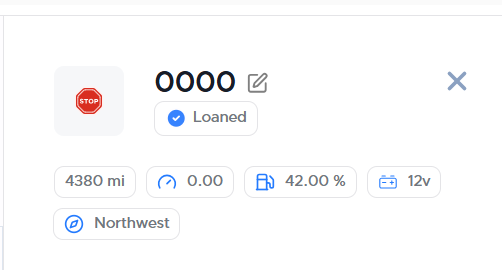
Select the vehicle from the list or choose its corresponding icon on the map to open the vehicle details.
Step 3: Edit the Vehicle
- Confirm that the correct vehicle is selected.
- Select Edit from the vehicle details.
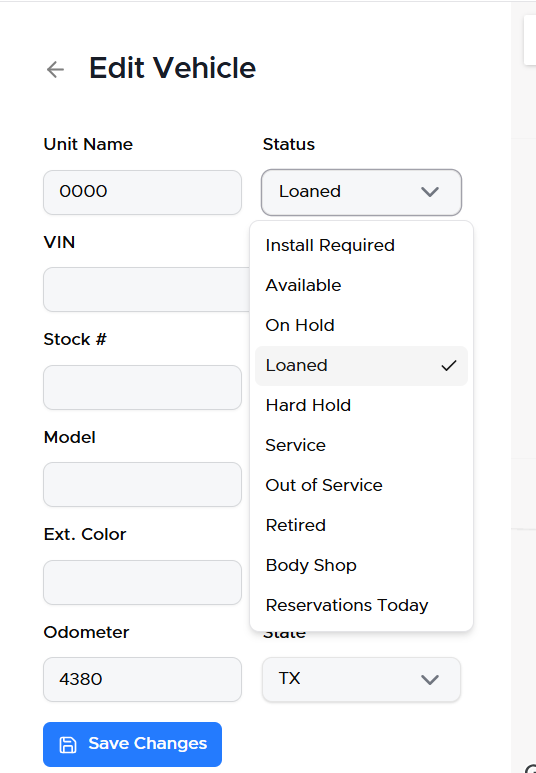
- Locate the Status field.
- Open the status dropdown.
- Select the appropriate vehicle status.
Step 4: Save the Changes
Select Save to apply the new status.
The vehicle’s updated status will be reflected in the vehicle details and applicable HyperDrive dashboard tiles.
Option 2: Update the Status from AdministrationStep 1: Open Vehicle and Devices
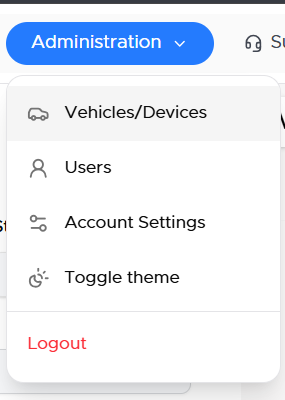
- Select Administration from the navigation bar at the top of the screen.
- Select Vehicle and Devices from the Administration menu.
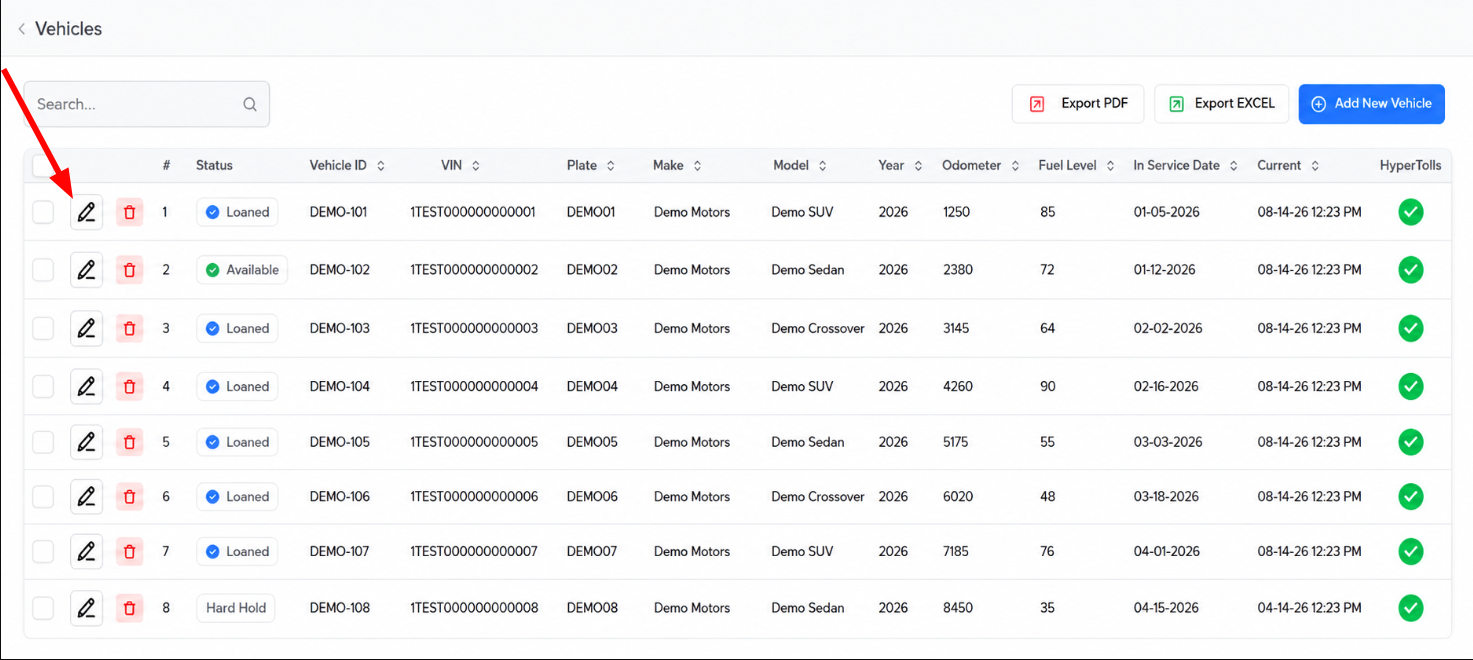
The Vehicle and Devices screen displays the units associated with your dealership.
Step 2: Locate the Vehicle
Use the search field or vehicle table to locate the unit you want to update.
Before making any changes, verify information such as the unit number, VIN, license plate, make, and model.
Step 3: Edit the Vehicle
- Select the Edit option associated with the vehicle.
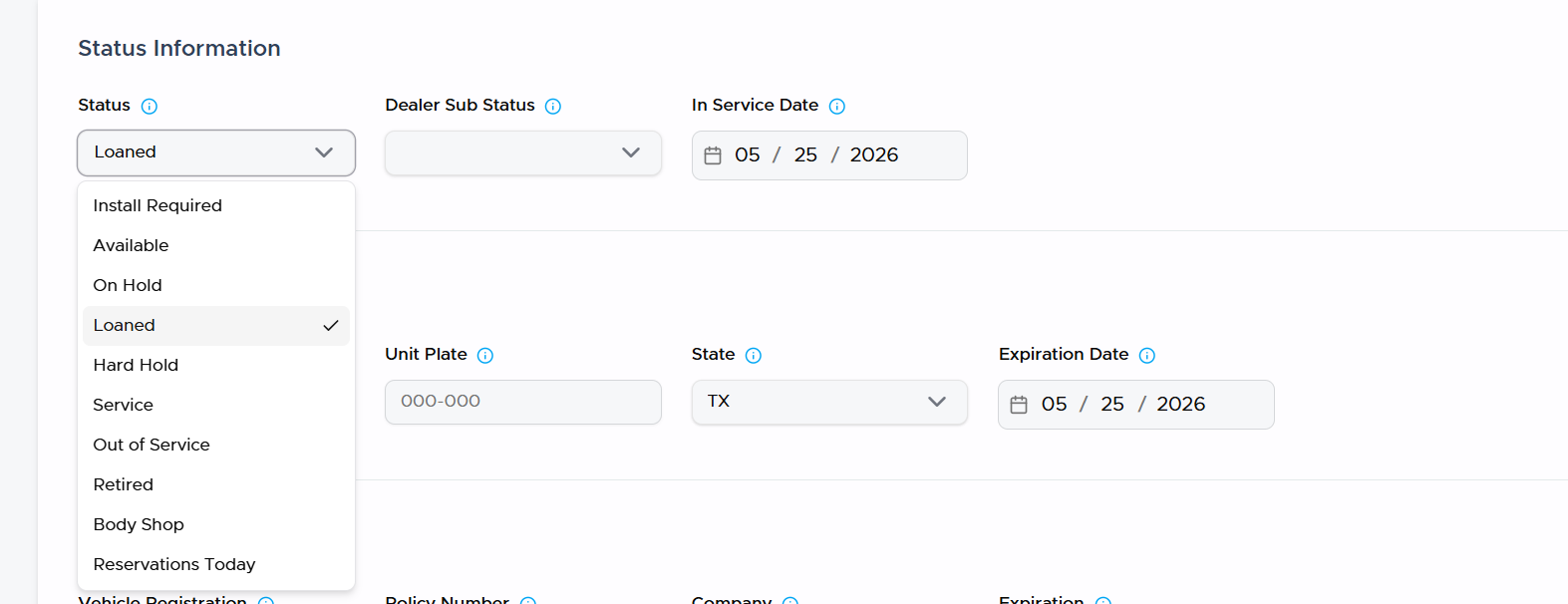
- Locate the vehicle’s status information.
- Open the status dropdown.
- Select the appropriate status.
Step 4: Save the Changes
Select Finish to save the updated vehicle information.
The new status will be applied to the unit and reflected throughout the applicable areas of HyperDrive Pro.
Always confirm that the correct vehicle is selected before changing its status. Status changes can affect whether the unit appears available for new reservations or agreements.