- Log in to your Logitrac account.
- Select Administration from the navigation bar.
- Select General Settings.
- Choose the appropriate settings section from the sidebar.
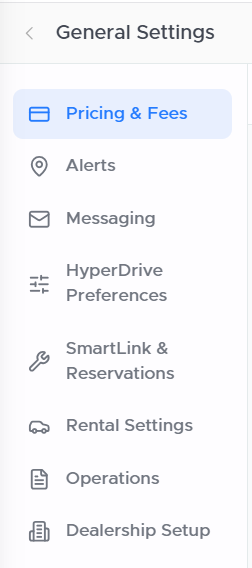
The General Settings sidebar includes:
- Pricing & Fees
- Alerts
- Messaging
- HyperDrive Preferences
- SmartLink & Reservations
- Rental Settings
- Operations
- Dealership Setup
Select Save Changes after updating a section.
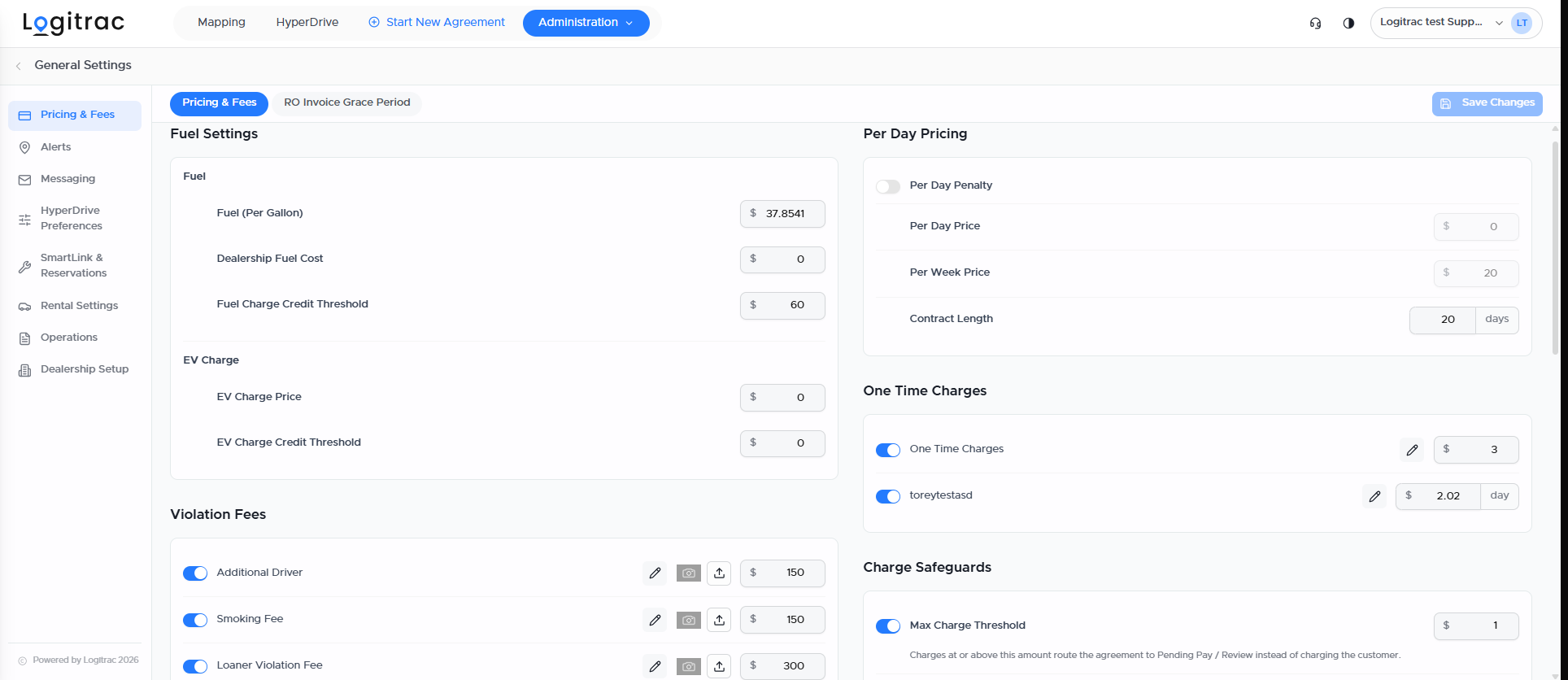
The Pricing & Fees section controls customer charges, payment safeguards, rental requirements, and dealership financial calculations.
It contains two tabs:
- Pricing & Fees
- RO Invoice Grace Period
Use Fuel Settings to configure fuel-related charges.
Fuel Per Gallon
The amount used to calculate a customer’s fuel charge when a vehicle is returned with less fuel.
Dealership Fuel Cost
The dealership’s internal fuel cost. This may be used for reporting and profit calculations.
Fuel Charge Credit Threshold
Fuel charges below this amount are waived.
If the calculated fuel charge exceeds the threshold, the customer owes the full calculated amount.
For example, with a Fuel Charge Credit Threshold of $10:
- A calculated charge of $9.99 is waived.
- A calculated charge of $10.01 results in the full $10.01 being charged.
EV Charge Price
The amount used to calculate a charging fee when an electric vehicle is returned below the expected charge level.
EV Charge Credit Threshold
EV charges below this amount are waived.
If the calculated EV charge exceeds the threshold, the customer owes the full calculated amount.
Violation FeesViolation fees are predefined charges that can be selected when closing an agreement.
Examples may include:
- Additional Driver
- Smoking Fee
- Loaner Violation Fee
- Damage Loaner Fee
- Insurance Claim Deductible
Your dealership can configure up to five violation fees. Each fee can have a default name and amount.
The default amount can still be adjusted from the agreement closing screen when necessary. Depending on your dealership’s security settings, changing or removing a fee may require an administrator password.
Mileage ChargesExcessive Daily Mileage
Enable this setting when customers are limited to a specific number of miles per day.
Available settings include:
- Daily Mileage Limit
- Per Mile Cost
- Exceeded Miles Charge
When the customer exceeds the configured daily mileage allowance, HyperDrive Pro calculates the applicable excess mileage charge.
Out of Area Mileage
Use this section to configure charges for mileage accumulated outside the dealership’s authorized travel area.
Per Day PricingThe Per Day Pricing section controls standard time-based agreement charges.
Available settings may include:
- Per Day Penalty
- Per Day Price
- Per Week Price
- Contract Length
One Time Charges are customizable fees that may be added to an agreement.
Administrators can:
- Enable or disable a charge
- Edit its name
- Configure its amount
- Determine whether it applies once or according to another displayed interval
Charge Safeguards provide dealership-wide controls for large customer charges.
Max Charge Threshold
If the amount being charged is at or above the configured Max Charge Threshold, the agreement will automatically move to Pending Pay / Review instead of charging the customer immediately.
This allows the dealership to review larger charges before processing payment.
This setting is different from the Fuel Charge Credit Threshold and EV Charge Credit Threshold.
Warning Threshold
If a user attempts to process an amount above the Warning Threshold, HyperDrive Pro displays a warning before the charge proceeds.
This is an account-wide warning intended to make advisors aware of unusually large charges.
Additional FeesThe Additional Fees section contains optional account-level fees, such as:
- Connected Services Fee
- Insurance Verification Fee
The available fees depend on the products and services enabled for your account.
Rental RequirementsUse Rental Requirements to configure account-wide eligibility rules, such as the minimum customer age.
RO ProfitsThe RO Profits section contains values used to calculate the dealership’s repair order profitability, including:
- RO Loaner Fleet Cost
- RO Advisor Commission
These figures contribute to the financial information displayed on the HyperDrive Pro Financial Dashboard.
Financial SettingsAvailable Financial Settings may include:
- Pre-Authorization Charge
- Automated Payment
- Deposit Fee
- Deposit Amount
- Deposit Optional
These settings control how payment authorizations, deposits, and automated agreement charges are handled.
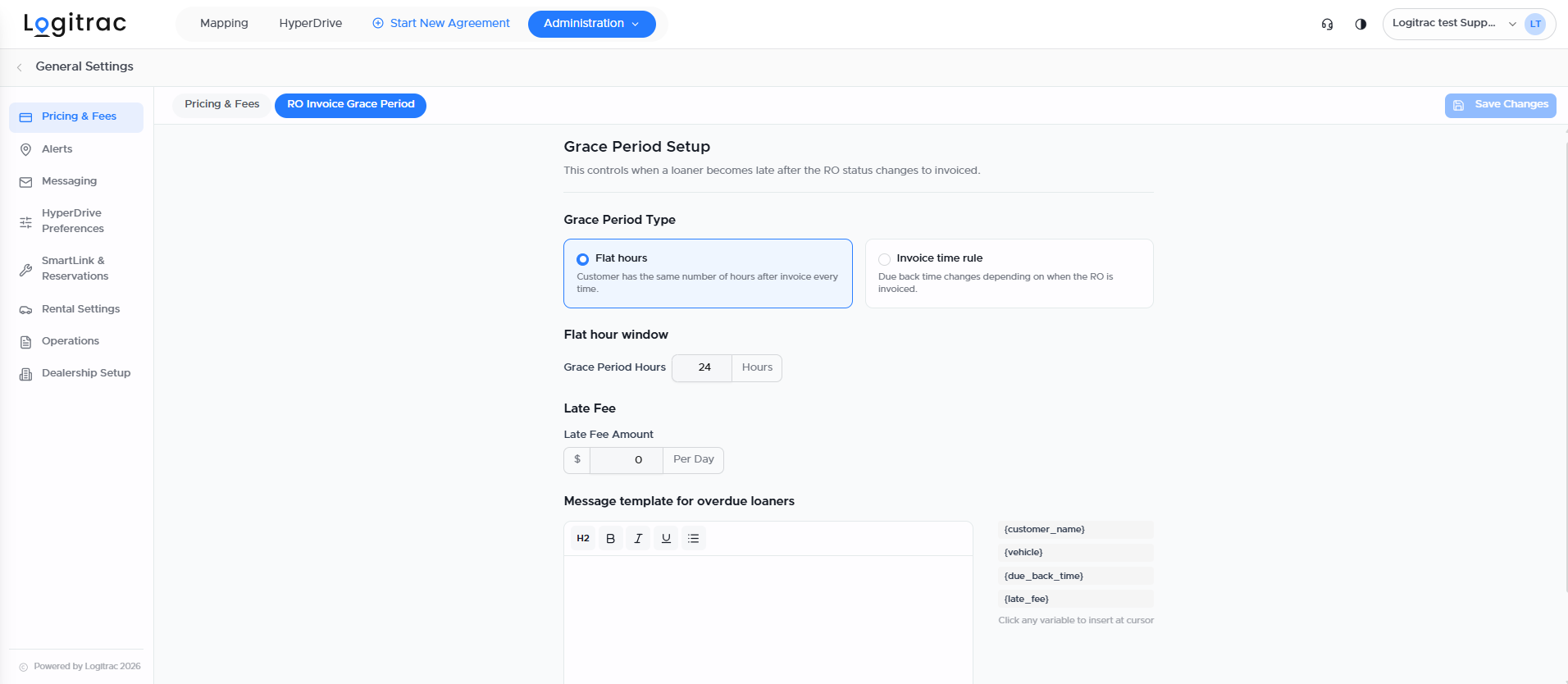
The RO Invoice Grace Period tab provides additional control over what happens after a repair order changes to an invoiced status.
This determines when the loaner becomes late and when applicable charges begin.
Grace Period TypeChoose one of the available calculation methods:
Flat Hours
The customer receives the same number of grace-period hours each time the repair order is invoiced.
Invoice Time Rule
The due-back time changes depending on when the repair order is invoiced.
Flat Hour WindowWhen Flat Hours is selected, enter the number of grace-period hours the customer receives after the repair order is invoiced.
Invoice Time Window
The Invoice Time Rule changes the customer’s due-back deadline based on when the repair order is invoiced.
Configure the following options:
- Cutoff Time: The time used to determine which due-back rule applies.
- Timezone: The dealership’s local timezone used for the cutoff and due-back calculations.
- Before Cutoff Due Back Time: The time the vehicle is due back when the repair order is invoiced before the configured cutoff.
- At or After Cutoff Due Back Day: Determines whether the vehicle is due back the same day, the next day, or according to another available option when the repair order is invoiced at or after the cutoff.
- At or After Cutoff Due Back Time: The time the vehicle must be returned on the selected due-back day.
For example, a dealership could configure the rule so that:
- Repair orders invoiced before 11:00 AM require the vehicle to be returned by 11:00 AM.
- Repair orders invoiced at or after 11:00 AM allow the vehicle to be returned by 5:00 PM the next day.
Enter the amount that may be charged for each day beyond the allowed grace period.
Overdue Loaner MessageCustomize the message sent to customers when their loaner becomes overdue.
Available variables may include:
- Customer name
- Vehicle
- Due-back time
- Late fee
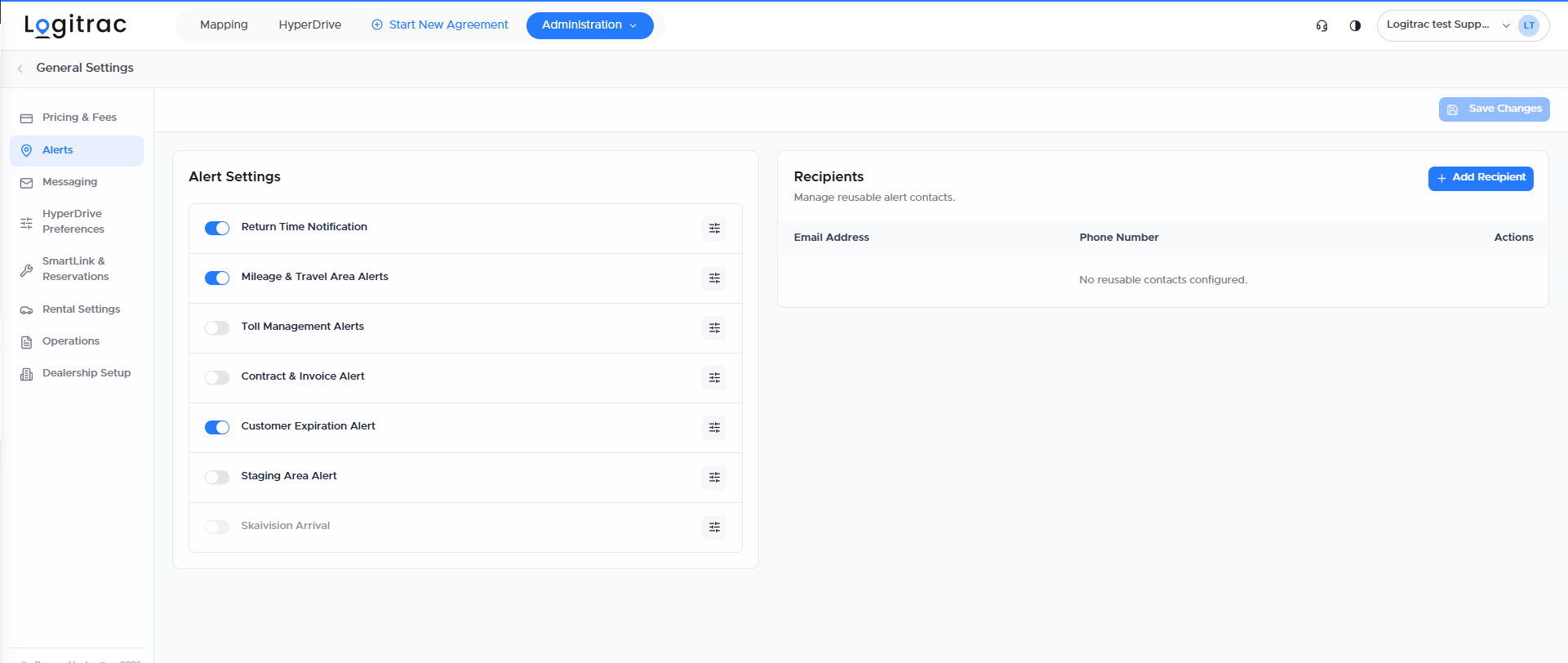
The Alerts section controls internal notifications about important customer, agreement, vehicle, and integration activity.
Available alert groups include:
- Return Time Notification
- Mileage & Travel Area Alerts
- Toll Management Alerts
- Contract & Invoice Alert
- Customer Expiration Alert
- Staging Area Alert
- Skaivision Arrival
Use the toggle beside an alert group to enable or disable it.
Select the settings icon beside an alert to configure its individual options, recipients, timing, or delivery methods.
Alert RecipientsThe Recipients section allows administrators to create reusable alert contacts.
Select Add Recipient to add an email address or phone number. These contacts can then be selected when configuring applicable alerts.
This prevents administrators from repeatedly entering the same contact information for multiple notifications.
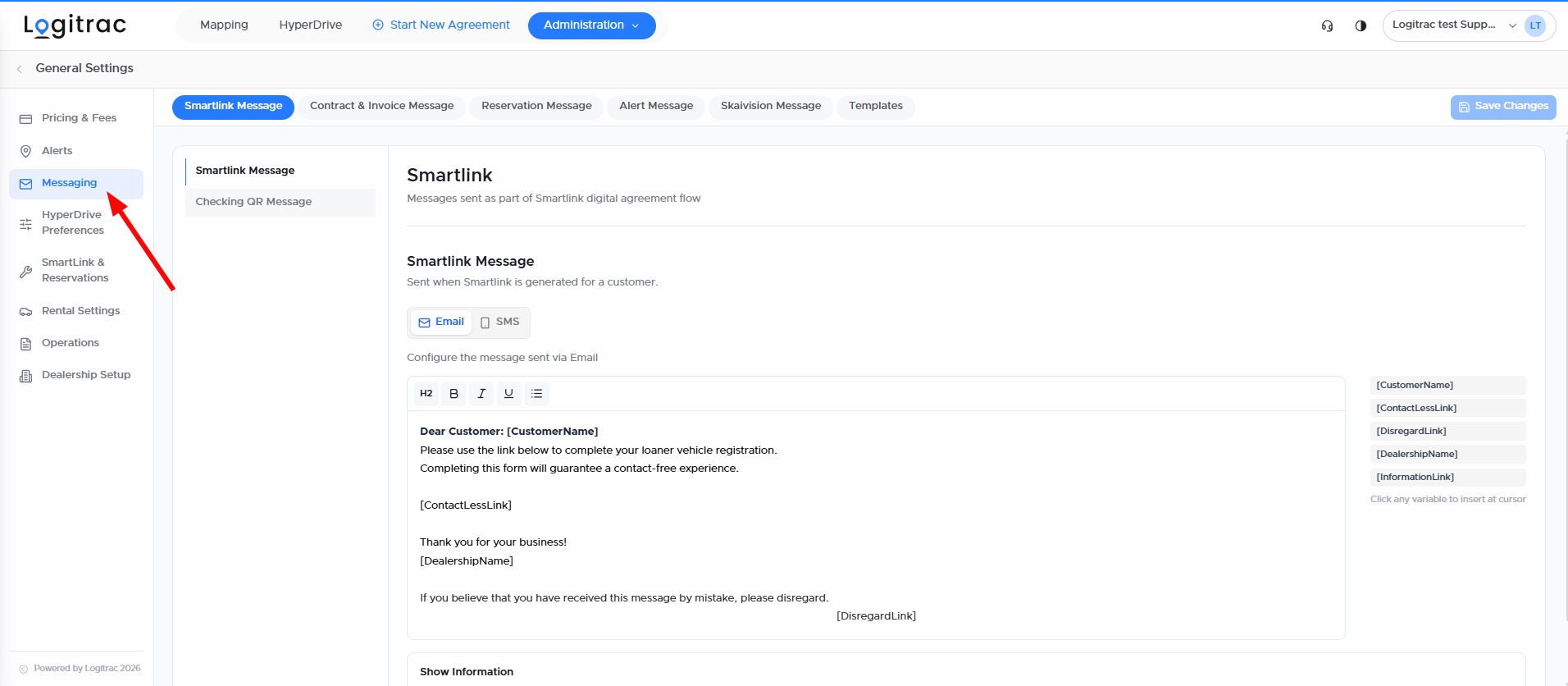
The Messaging section controls the email and SMS templates sent to customers throughout the agreement and reservation process.
Available message categories include:
- SmartLink Message
- Contract & Invoice Message
- Reservation Message
- Alert Message
- Skaivision Message
- Templates
Select the appropriate message category and then choose the specific message you want to update.
Depending on the template, you may be able to configure separate versions for:
- SMS
Dynamic variables automatically insert information into messages.
Examples may include:
- Customer name
- Contactless or SmartLink URL
- Dealership name
- Vehicle
- Reservation information
- Disregard link
Select an available variable to insert it into the message at the cursor location.
Do not remove required link variables unless you are certain the customer no longer needs that action.
Select Save Changes after editing a message.
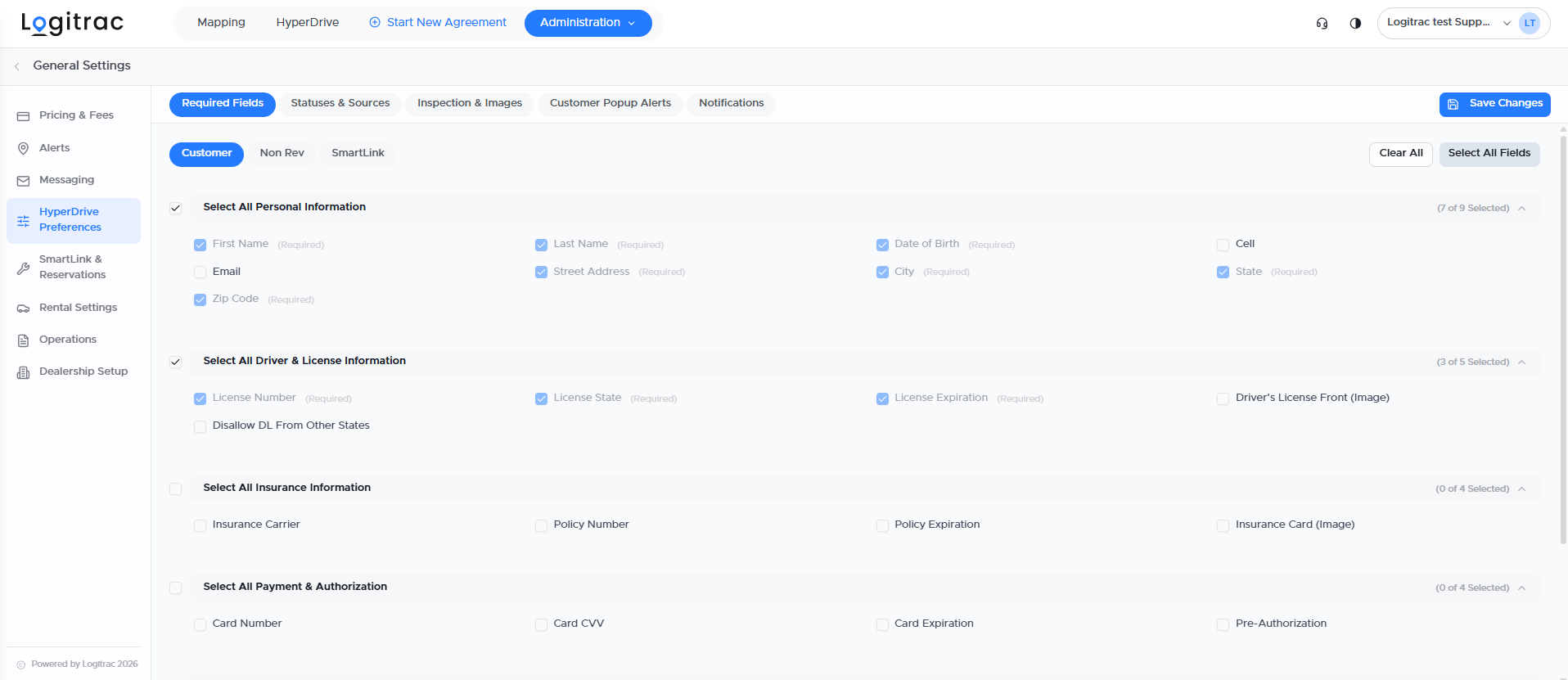
The HyperDrive Preferences section controls agreement requirements, custom statuses, inspection rules, customer alerts, and insurance notifications.
It contains the following tabs:
- Required Fields
- Statuses & Sources
- Inspection & Images
- Customer Popup Alerts
- Notifications
Use Required Fields to determine what information must be completed during the agreement process.
Requirements can be configured for applicable agreement workflows, including:
- Customer
- Non Rev
- SmartLink
Available field groups may include:
Personal Information
- First name
- Last name
- Date of birth
- Phone number
- Address
- City
- State
- ZIP code
Driver and License Information
- Driver’s license number
- License state
- License expiration
- Driver’s license image
- Out-of-state license restrictions
Insurance Information
- Insurance carrier
- Policy number
- Policy expiration
- Insurance card image
Payment and Authorization
- Card number
- Card CVV
- Card expiration
- Pre-authorization
Agreement Details
- Customer VIN
- Repair order
- Source
- Customer tag
- Service advisor
- Loaner advisor
- View Profile
- Read Terms
When a field is selected, advisors must complete it before continuing through the agreement.
Only require fields that dealership employees can consistently collect. Bypassing a required field may require an administrator password.
Statuses & SourcesUse Statuses & Sources to create and manage custom statuses and sources used throughout the platform.
These can help your dealership categorize vehicles, contracts, customers, and agreement activity according to its own workflow.
Inspection & ImagesUse Inspection & Images to manage vehicle inspection and image requirements during the agreement process.
Only enable requirements that align with your dealership’s inspection workflow.
Customer Popup AlertsCustomer Popup Alerts allow the dealership to create custom alerts that can be assigned to customer profiles.
When an affected customer is selected for a future agreement, the alert will notify the advisor of important information or restrictions.
NotificationsThe Notifications tab applies to insurance verification notifications, including alerts related to inadequate insurance coverage.
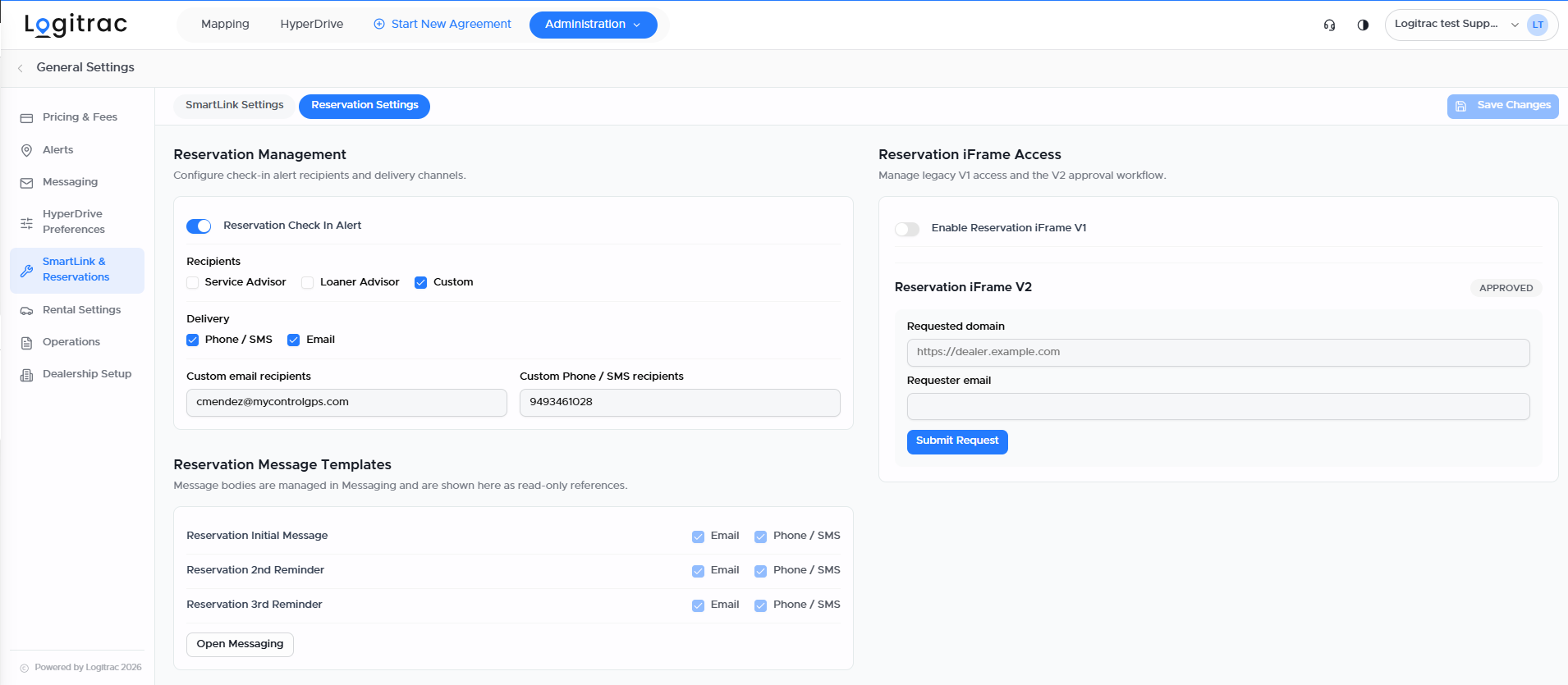
The SmartLink & Reservations section controls the customer SmartLink experience and reservation-related notifications.
It contains two tabs:
- SmartLink Settings
- Reservation Settings
Available SmartLink options may include:
- SmartLink Security Verification
- SmartLink Signature
- Hide Credit Card from SmartLink
- Hide Vehicle Inspection Step
These settings determine which steps customers complete and what verification may be required when opening a SmartLink.
SmartLink VersionYour dealership can select the available SmartLink version for its customer intake process.
SmartLink 1.0
The classic SmartLink experience supports manual customer entry and document scanning or uploading.
SmartLink 2.0
The latest SmartLink experience provides an updated and faster customer workflow, including QR code access.
A QR code can be placed at the dealership so walk-in customers can begin entering their information from their own device.
SmartLink required fields are managed from HyperDrive Preferences.
Reservation SettingsReservation Settings controls reservation check-in alerts, recipients, delivery methods, and reservation access options.
Available check-in recipients may include:
- Service Advisor
- Loaner Advisor
- Custom recipient
Delivery options may include:
- Phone or SMS
Reservation message content is managed from the Messaging section.
The Reservation Settings tab includes options related to reservation iFrame access and approval.
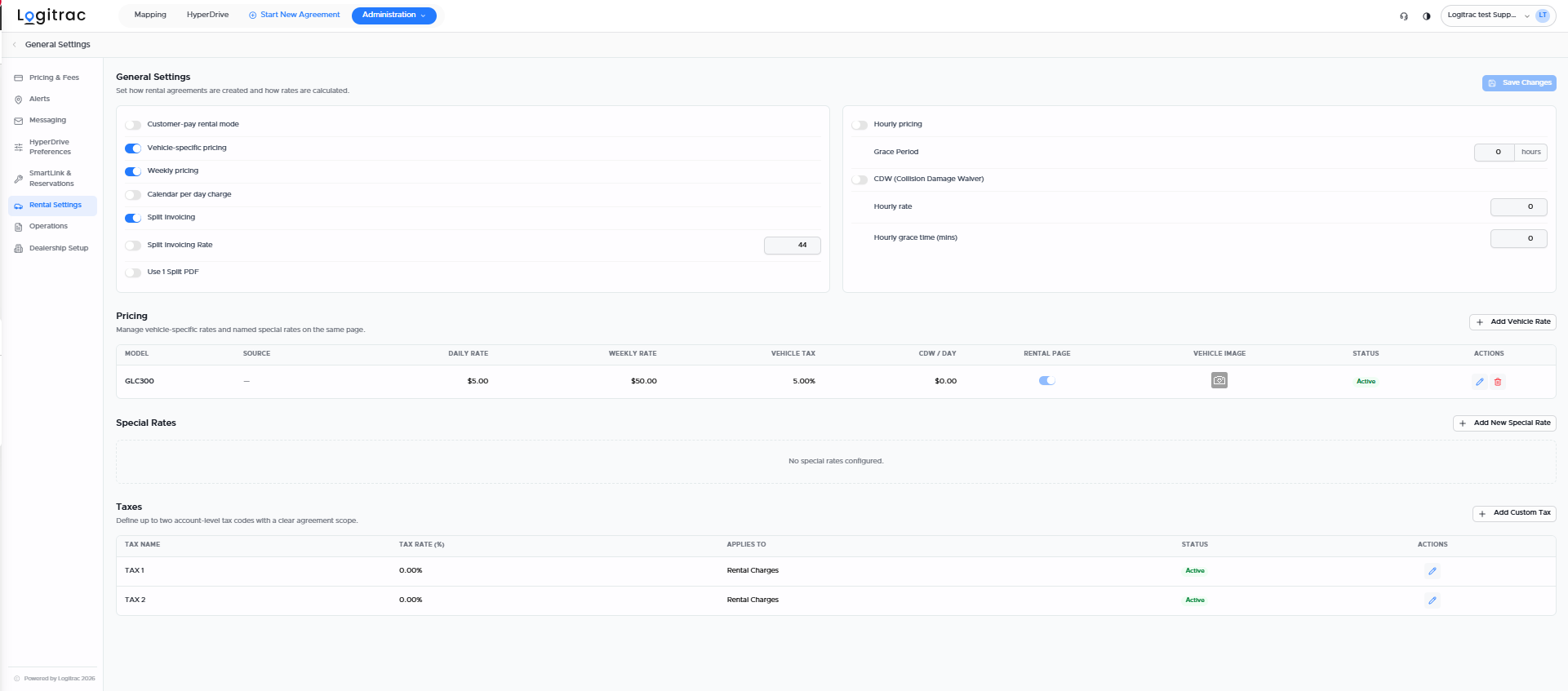
The Rental Settings section controls how customer-paid rental agreements are created and how rental rates are calculated.
Available options may include:
- Customer-pay rental mode
- Vehicle-specific pricing
- Weekly pricing
- Calendar per-day charge
- Split invoicing
- Split invoicing rate
- Split invoice PDF settings
- Hourly pricing
- Hourly grace period
- Collision Damage Waiver
- Hourly rate
- Hourly grace time
Vehicle-specific pricing allows the dealership to assign different rental rates to different models.
A vehicle-specific daily or weekly rate will override the account-wide rate configured in Pricing & Fees.
Select Add Vehicle Rate to create pricing for another vehicle model.
Special RatesSpecial Rates allow the dealership to create named pricing options for specific rental situations.
Select Add New Special Rate to configure a special rate.
TaxesUse the Taxes section to create account-level tax rates and determine which rental charges they apply to.
Split InvoicingDealerships that use split invoicing for warranty or other billing arrangements can enable and configure the feature from Rental Settings.
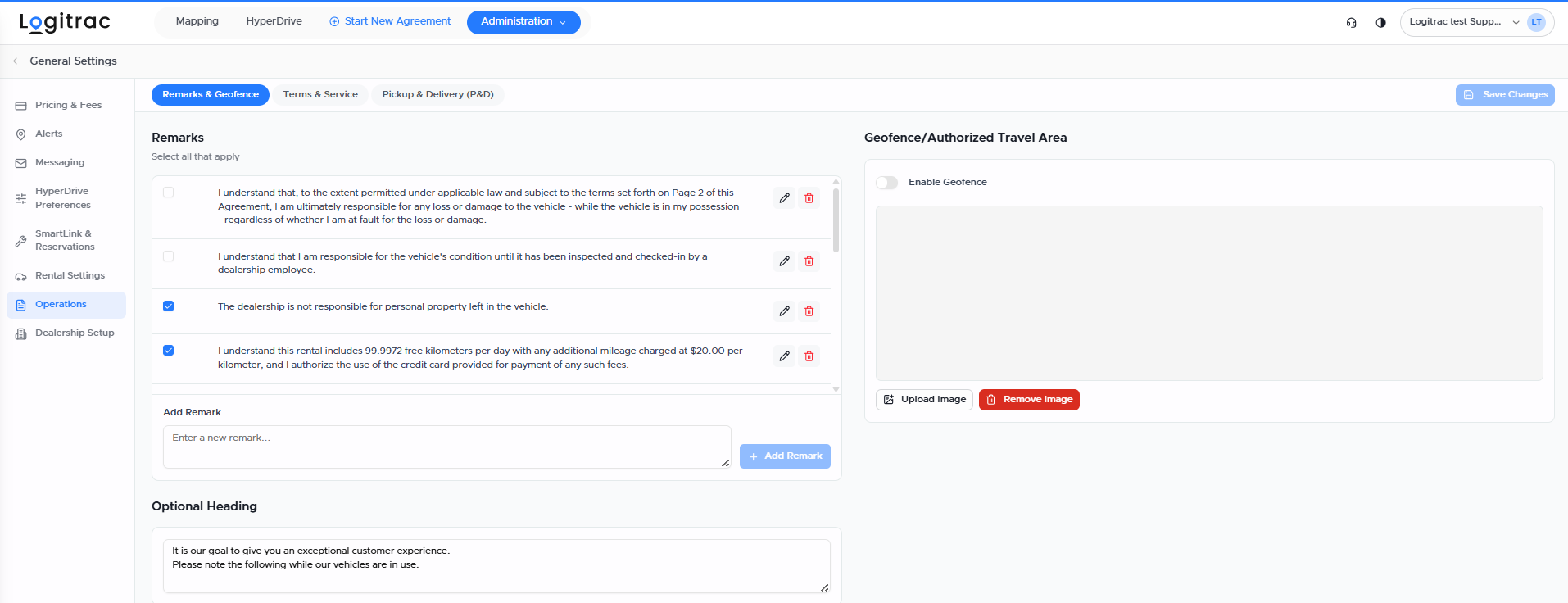
The Operations section includes agreement wording and authorized travel-area settings.
For this overview, the primary settings are located under Remarks & Geofence.
RemarksRemarks are dealership-defined statements that may appear in the agreement terms.
Administrators can:
- Enable or disable existing remarks
- Edit a remark
- Delete a remark
- Add a new remark
- Select which remarks apply
- Configure an optional heading
Review agreement wording carefully before publishing changes.
Geofence and Authorized Travel AreaUse the Geofence/Authorized Travel Area section to configure the geographic boundary associated with the dealership’s travel-area rules.
When enabled, this area can be used with Mileage & Travel Area Alerts to notify the dealership when a customer travels outside the authorized region.
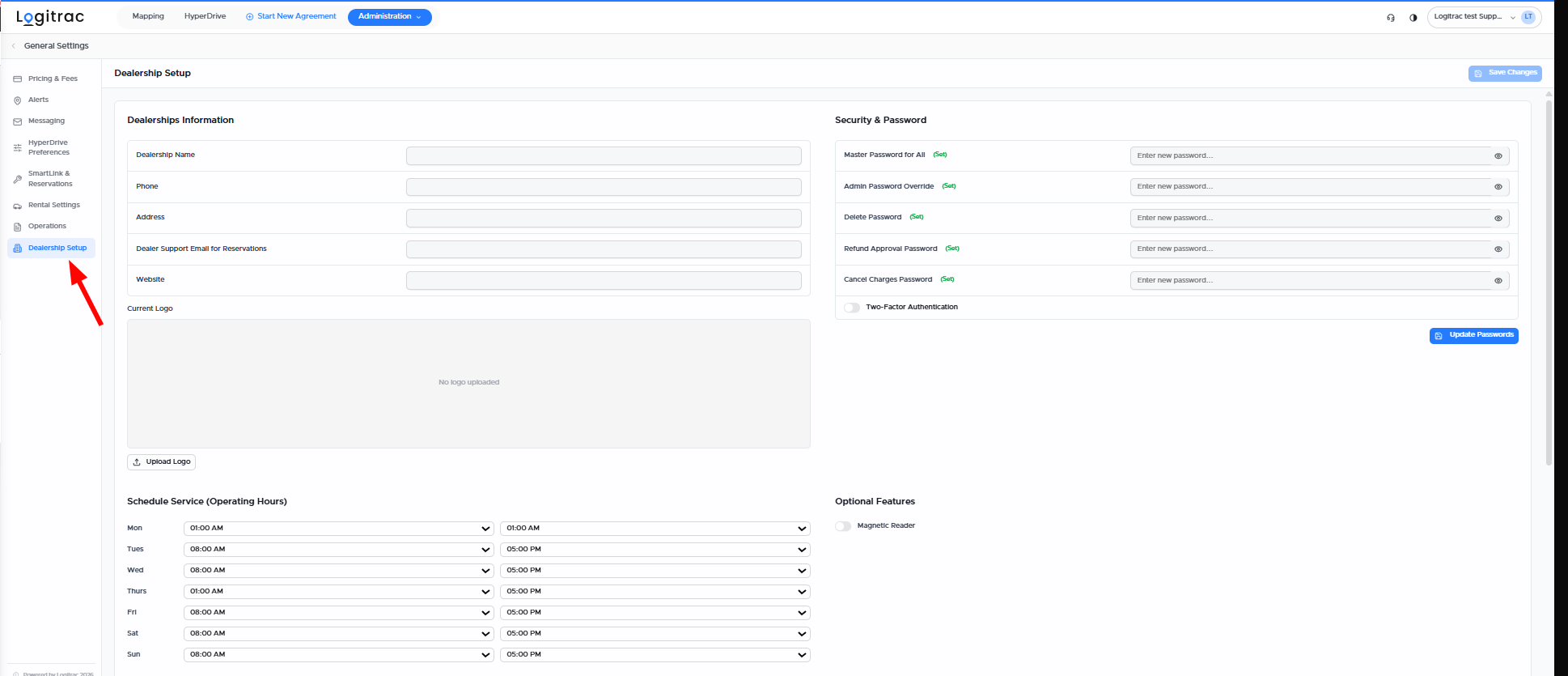
The Dealership Setup section contains dealership information, operating hours, branding, security passwords, and optional features.
Dealership InformationAdministrators can update:
- Dealership name
- Phone number
- Address
- Dealer support email for reservations
- Website
Upload the logo that should appear on applicable contracts and customer-facing documents.
Use a clear, current version of the dealership’s official logo.
Operating HoursUse Schedule Service (Operating Hours) to configure the dealership’s opening and closing times for each day of the week.
These hours may affect customer communications and other time-based workflows.
Security and PasswordsAuthorized administrators can update passwords used for protected platform actions.
Available passwords may include:
- Master Password for All
- Admin Password Override
- Delete Password
- Refund Approval Password
- Cancel Charges Password
Security options may also include Two-Factor Authentication.
Store and distribute administrative passwords securely. Only authorized employees should have access to protected actions.
Optional FeaturesOptional dealership features, such as a magnetic reader, may also be enabled from this section when applicable.
Select Save Changes after updating dealership information or operating hours. Use Update Passwords when changing security passwords.
After updating any General Settings section:
- Review each changed value.
- Confirm that the settings match the dealership’s intended workflow.
- Select Save Changes.
- Test the affected agreement, message, alert, or payment workflow when appropriate.
Changes to required fields, automated payments, customer charges, messages, or security settings can immediately affect dealership users and customers. Contact Logitrac Support if you are unsure how a setting should be configured.