- Log in to your Logitrac account.
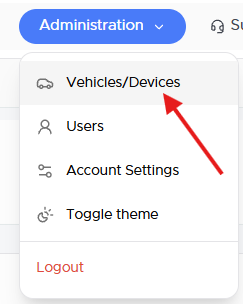
- Select Administration from the navigation bar at the top of the screen.
- Select Vehicles and Devices from the Administration menu.
The Vehicles screen displays the units currently associated with your dealership.
Select Add New Vehicle in the upper-right corner of the Vehicles screen.

If the Add New Vehicle button is not available, your account may not allow vehicles to be added manually. Contact Logitrac Support for assistance.
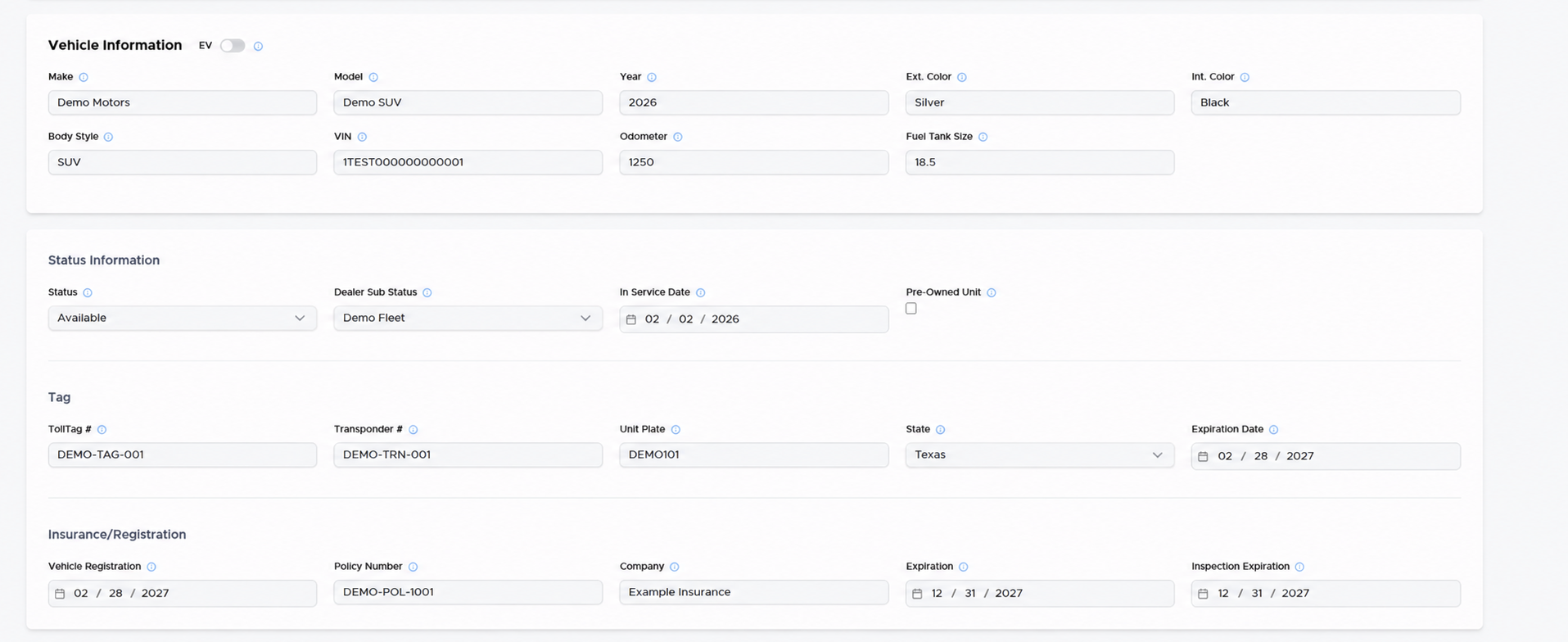
Entering Vehicle InformationComplete the required vehicle information. Available fields may include:
- VIN: Enter the vehicle’s unique 17-character Vehicle Identification Number.
- Make: Enter the vehicle manufacturer.
- Model: Enter the vehicle model.
- Year: Enter the vehicle’s model year.
- Exterior Color: Enter the vehicle’s exterior color.
- Interior Color: Enter the vehicle’s interior color.
- Body Style: Select or enter the vehicle’s body style.
- Odometer: Enter the vehicle’s current mileage.
- Fuel Tank Size: Enter the vehicle’s fuel capacity when applicable.
- Vehicle ID: Enter the unit number or identifier used by your dealership.
Review the VIN carefully before continuing. An incorrect VIN may affect vehicle records, agreements, reporting, and integrations.
Entering Status InformationComplete the applicable status fields, which may include:
- Vehicle status
- Dealer sub-status
- In-service date
- Pre-owned unit designation
The selected status determines whether the vehicle appears available for new reservations and agreements.
Entering Tag InformationAdd the available tag and registration details:
- Toll tag number
- Transponder number
- Unit plate
- State
- Plate expiration date
Accurate plate and toll information is important for dealerships using HyperTolls or other toll-processing services.
Entering Insurance and Registration InformationIf applicable, complete the vehicle’s insurance and registration fields:
- Vehicle registration date
- Policy number
- Insurance company
- Insurance expiration date
- Inspection expiration date
After entering the vehicle information:
- Review all fields for accuracy.
- Complete any required fields.
- Select Save to add the vehicle to your fleet.
A confirmation message will appear after the vehicle has been successfully created.
Verifying the New VehicleReturn to the Vehicles screen and use the search field to locate the newly added vehicle.
Confirm that important information appears correctly, including:
- Vehicle ID
- VIN
- License plate
- Make and model
- Year
- Status
If any information is incorrect, select the pencil Edit icon beside the vehicle to update its profile.