- Log in to your Logitrac account.
- Select HyperDrive from the navigation bar at the top of the screen.
- Select Reservations from the HyperDrive sidebar.
The Reservations screen displays existing reservations and provides the option to create a new one.
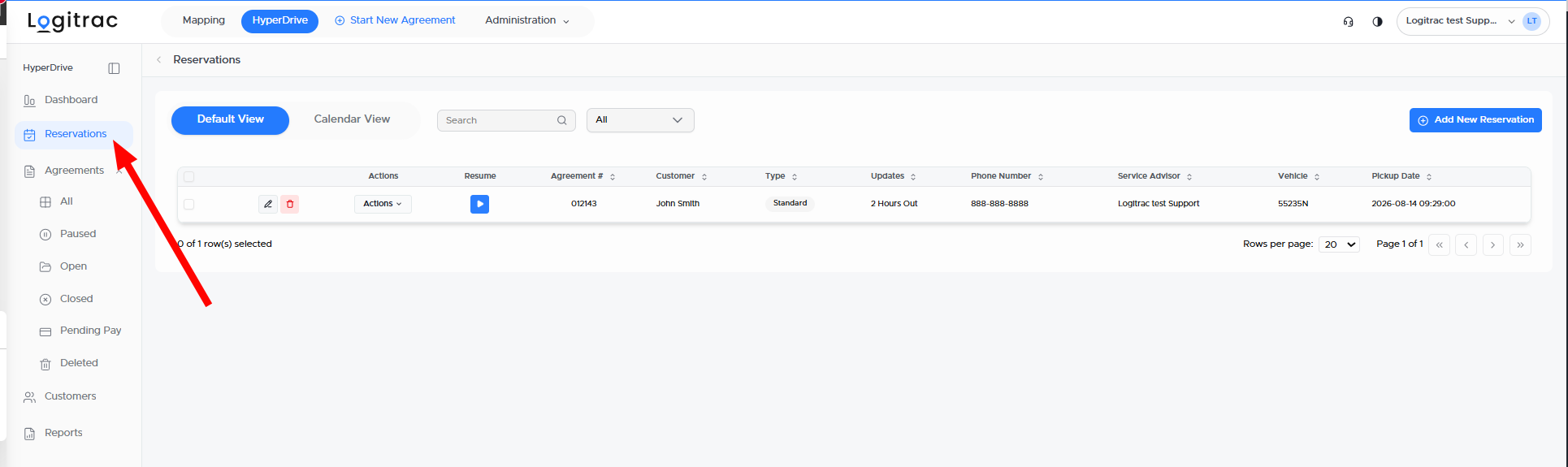
- Select Add New Reservation.
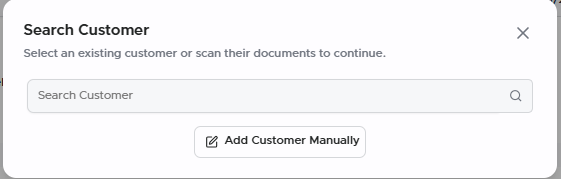
- Search for an existing customer or enter the information for a new customer.
- Complete the required reservation details.
- Select a vehicle if you want to reserve a specific unit.
- Review the reservation information.
- Select Reserve to save the reservation.

Use the customer search to determine whether the customer already has a profile in Logitrac.
If the customer already exists, select the customer’s profile from the search results. This helps prevent duplicate customer records.
If the customer does not have an existing profile, enter the required customer information to create the reservation.
Confirm that the customer’s phone number and email address are correct because this information may be used to send the reservation SmartLink and automated reminders.
Complete the available reservation fields, including the customer’s expected arrival date and time and any other information required by your dealership.
Depending on your account configuration and integrations, some reservation information may already be populated from the dealership’s appointment system.
Complete all required fields before saving the reservation.
Reserving a VehicleYou can select a specific vehicle while creating the reservation, but this step is optional.
Assigning a vehicle in advance can help your team prepare for the customer’s arrival. If a vehicle has not yet been determined, the reservation can be created without selecting one and a vehicle can be assigned later.
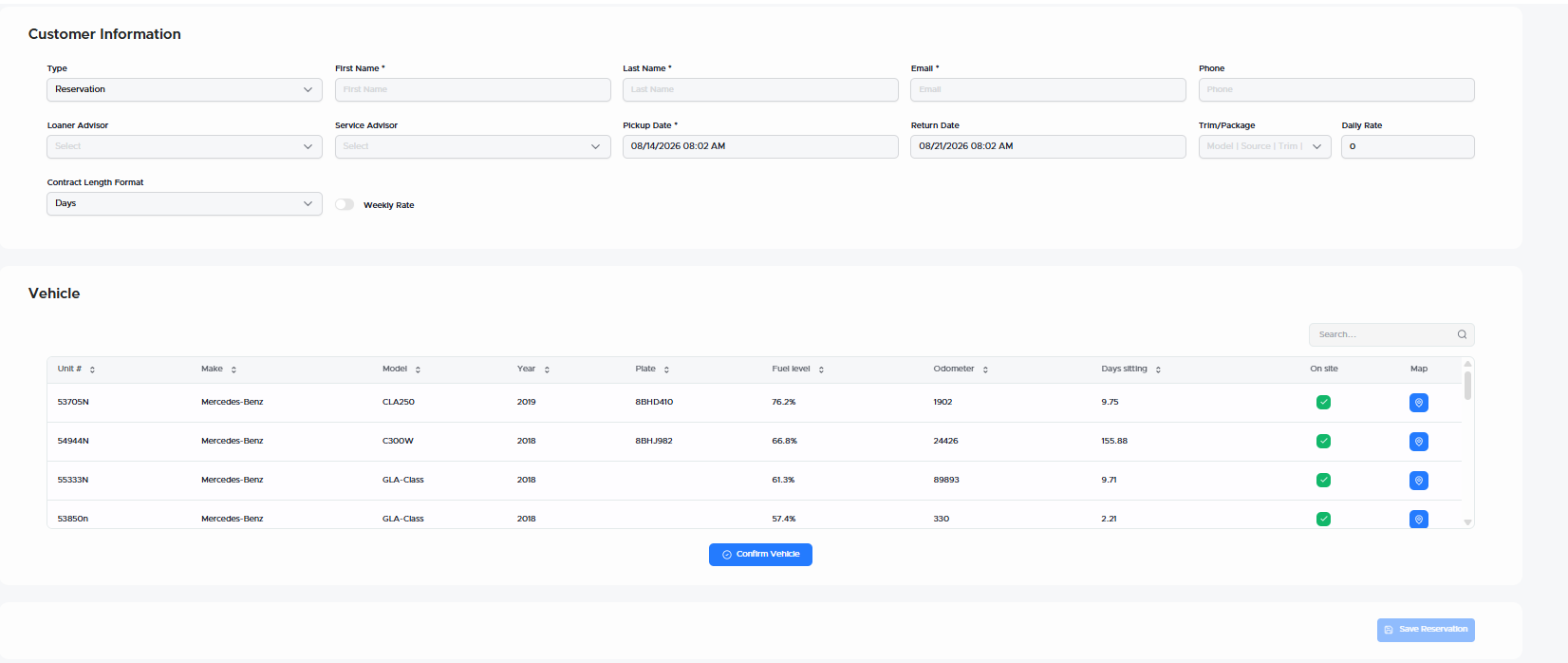
After reviewing the customer and reservation details, select Reserve to create the reservation.
The reservation will then appear in the Reservations section for your team to review and manage.
Viewing Existing ReservationsExisting reservations can be viewed in either of the following locations:
- Select Reservations from the HyperDrive sidebar.
- Open the Dashboard and select the Reservations Today tile to view reservations scheduled for the current day.
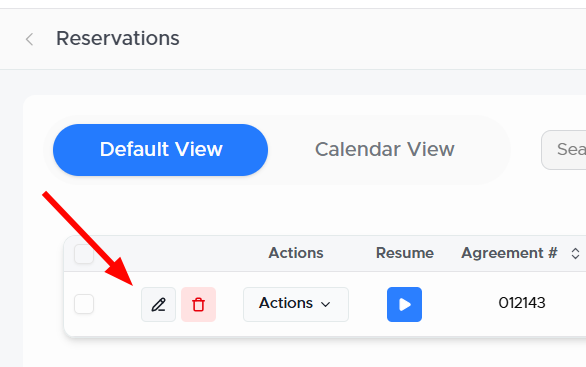
To update an existing reservation:
- Open the Reservations section.
- Locate the reservation you want to update.
- Select the Edit or pencil icon associated with the reservation.
- Update the necessary information.
- Save your changes.
When a reservation is created, the customer automatically receives a SmartLink that allows them to provide the required information before arriving at the dealership.
If the customer does not complete the SmartLink, your dealership can configure additional reminders through the message template settings.
To review these options:
- Open Account Settings.
- Navigate to Message Templates.
- Locate the applicable reservation or SmartLink reminder templates.
- Configure the desired second and third reminder intervals.
These reminders can be scheduled to send at specific times before the reservation. This helps your team collect the required customer information before the customer arrives.