- Log in to your Logitrac account.
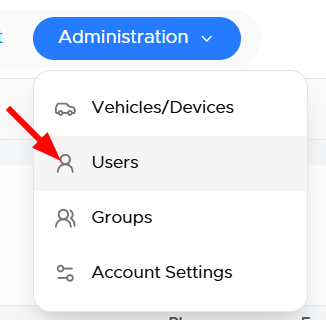
- Select Administration from the navigation bar at the top of the screen.
- Select Manage Users from the Administration menu.
The Manage Users screen displays the user accounts associated with your dealership.
Step 1: Select Add New User
From the Manage Users screen, select Add New User in the upper-right corner.

Step 2: Enter the User’s Information
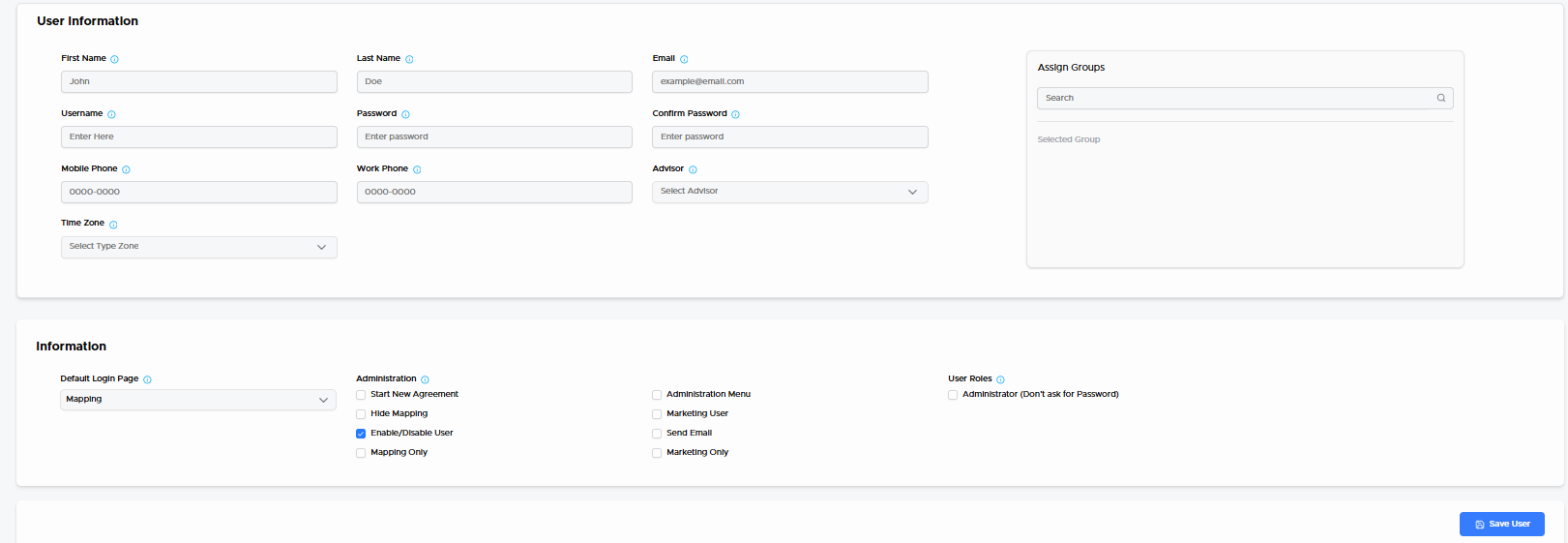
Complete the required information for the new user. The available fields may include:
- First and last name
- Email address
- Username
- Phone number
- User role
- Dealership or account access
- Other required profile information
Confirm that the email address is correct because Logitrac will use it to send the user information about accessing their account.
Step 3: Configure User Permissions
Assign the permissions and access levels appropriate for the user’s role.
Permissions may control whether the user can:
- View specific sections of the platform
- Create, edit, or close agreements
- Access dealership reports
- Manage customers or vehicles
- Adjust charges or protected information
- Access administrative settings
- Manage other users
Only provide access to the tools and information the user needs to perform their job.
Step 4: Save the User
After reviewing the user’s information and permissions, select Save to create the account.
The new user will receive an email with instructions for accessing the Logitrac platform.
Editing an Existing UserTo update an existing user:
- Open Manage Users.
- Locate the user using the table or search field.
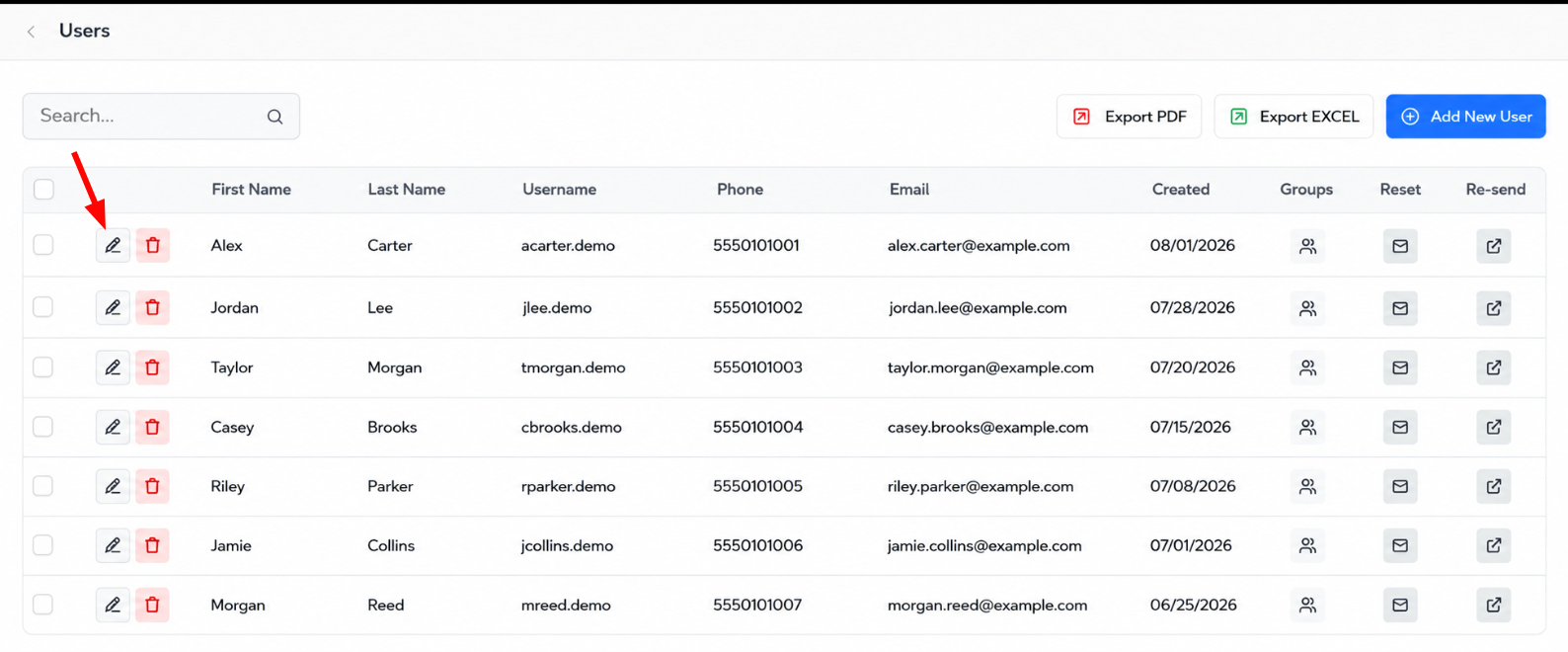
- Select the available edit action for that user.
- Update the necessary profile information, role, or permissions.
- Save the changes.
Review a user’s permissions whenever their role or responsibilities change.
Users who should no longer have access to the dealership’s account can be removed from the Manage Users screen.
To delete a user:
- Open Manage Users.
- Locate the user you want to remove.
- Confirm that you have selected the correct user.
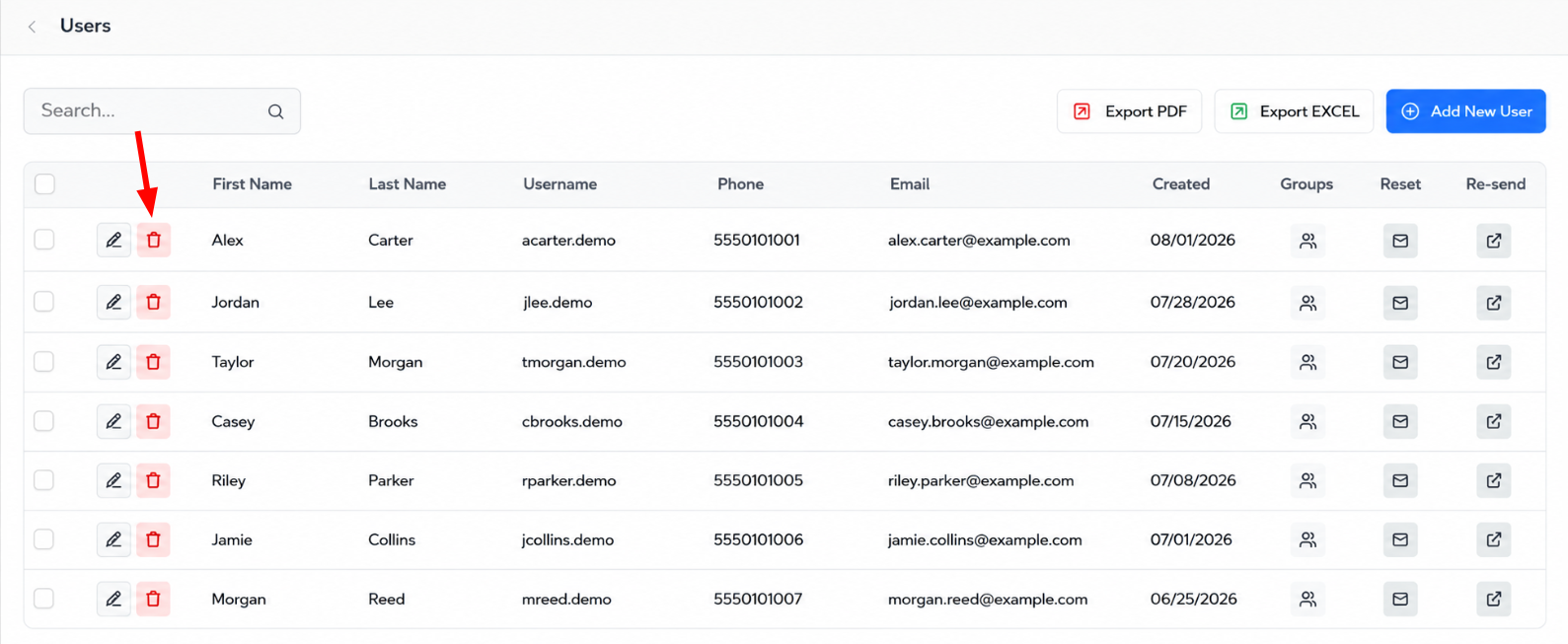
- Select the trash can icon in that user’s row.
- Confirm the deletion when prompted.
Deleting a user removes their ability to access the dealership’s Logitrac account. Before deleting the profile, confirm that the user no longer requires access.
Regularly reviewing the Manage Users page helps ensure that each user has the correct permissions and that former employees or inactive users no longer have platform access.