- Log in to your Logitrac account.
- Select HyperDrive from the navigation bar at the top of the screen.
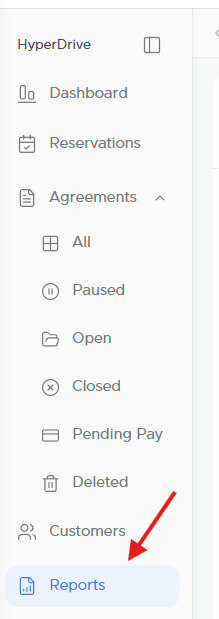
- Select Reports from the HyperDrive sidebar.
- Open the report scheduling section.
Select + New Schedule at the top of the reporting screen to begin creating a scheduled report.

Complete the available schedule settings.
Report Type
Select the report you want to receive. The available reports may vary based on your account configuration and user permissions.
Date Range
Choose the period of information that should be included each time the report is generated.
Review the selected range carefully to ensure the report will include the intended data.
File Format
Select the format in which the report should be delivered:
- Excel
Excel may be more useful when the recipient needs to sort, filter, or analyze the data. PDF may be preferable for viewing, sharing, or retaining a fixed version of the report.
Delivery Time
Choose the time of day when the report should be generated and emailed.
Frequency
Select how often the report should be delivered:
- Daily
- Weekly
- Monthly
Additional scheduling options may appear based on the selected frequency.
Start Date
Select the date when the automated report schedule should begin.
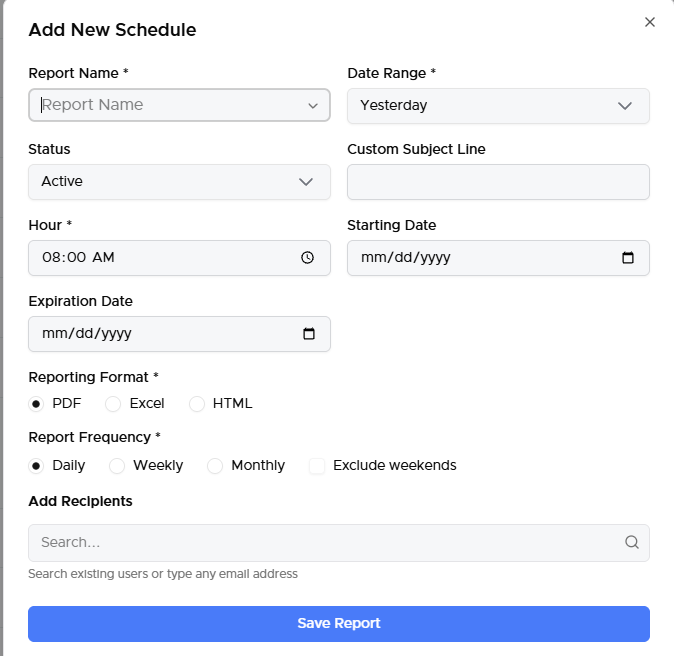
Enter the email addresses of the individuals who should receive the report.
Before saving, confirm that each email address is entered correctly. Only include recipients who are authorized to view the information contained in the report.
Saving the ScheduleAfter reviewing the report and delivery settings:
- Confirm the selected report type.
- Review the date range and format.
- Confirm the delivery time and frequency.
- Verify the start date.
- Review all recipient email addresses.
- Select Save.
The report is now scheduled and will be delivered according to the selected settings.
Managing Existing SchedulesReturn to the report scheduling section to review your existing schedules. Depending on your permissions, you may be able to edit or remove a schedule when its report, recipients, or delivery settings need to change.
[Insert Image: Existing scheduled reports]
If you need assistance scheduling a report, select Support from the navigation bar or call Logitrac Support at 888-598-0887.