A quick video covering how to adjust your account settings within the platform!
-
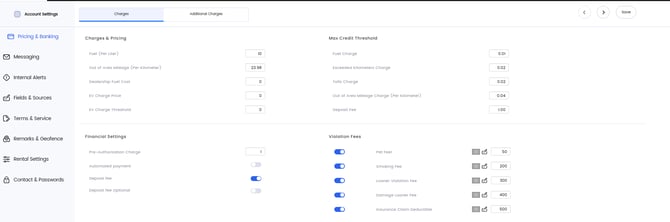
This section references to what you will be charging for fuel, out of area mileage, and EV charge price.
-
If you have the "Deposit Fee" selected on, this is where you would enter the amount you wish to charge for deposits.
2. Max Credit Threshold
-
This means that if you were to give them a fuel charge MCT of $10.00, the customer would not be charged for fuel if the amount used calculates to under $10.00. If the customer were to accrue $10.01 then they would owe that full amount.
-
You are able to set up these thresholds for a few other things, but most dealerships only use the fuel MCT.
3. Violation Fees
- You can have up to 5 violation fees that are selectable when closing contracts. These are used in cases where you would need to add a violation to a contract and it will default to the amount you enter next to the violation. If you wish to charge less than what you enter in this field, don't worry, this is also editable in the closing contract screen!
Messaging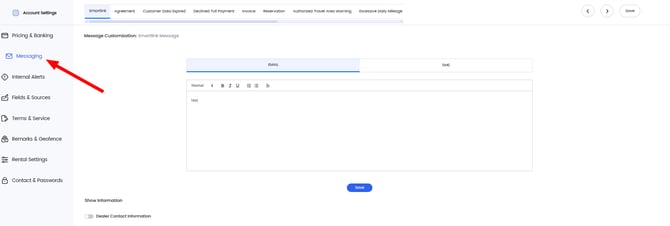
- This section is where you can edit your message templates that are sent out to your customers for various events. Click on an option above and edit the verbiage in the email/sms box for how you would like it to read!
Internal Alerts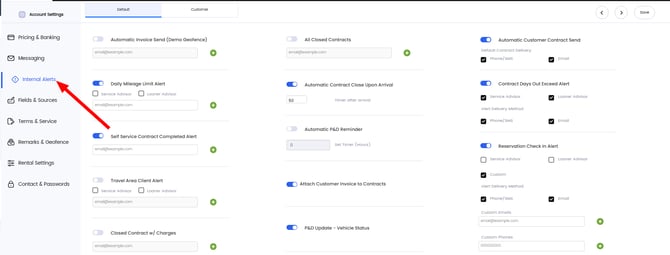
* For any that have a green plus please add the emails of those who want to be notified of the alert*
1. Automatic Invoice Send
-
This setting should always be off as this is for testing new accounts!
2. Daily Mileage Limit Alert
-
If you do have a daily mileage limit, this alert will notify you when a customer exceeds this limit.
3. Self Service Contract Completed Alert
-
This will notify you when a customer has completed their smart link!
4. Travel Area Client Alert
-
This will alert you when a customer travels outside the authorized travel area that you setup during your discovery phase! (EX: 100mi radius)
5. Closed Contract w/Charges
-
This will alert you when any contract closed that has accrued charges. We advise keeping this off for bigger dealerships.
6. All Closed Contracts
-
This will notify you when a contract is closed. We also advise keeping this off for dealerships that have a large quantity of loaners/contracts.
7. Automatic Contract Close Upon Arrival
-
This feature will automatically close contracts that are open once a certain time limit has been reached. This time limit will begin once the car has returned into your dealership geo-fence.
-
This timer is in minutes!
8. Automatic P&D Reminder
-
This is for dealerships that use our Pickup & Delivery option.
-
This will notify the customer hour(s) out a reminder that a driver is coming to pickup their car.
-
Set the timer(in hours) how far out you want the customer to be notified.
9. Attach Customer Invoice to Contracts
-
This will attach all invoices to contracts automatically when closed.
10. P&D Update- Vehicle Status
-
This will change the status of the car during a Pickup & Delivery when a driver has confirmed pickup
11. Automatic Customer Contract Send
-
This will automatically send a contract to a customer after an agreement has been opened.
12. Contract Days Out Exceed Alert
-
This will notify you when a contract becomes overdue. This is based on the contract length that you set at the beginning of an agreement.
13. Reservation Check In Alert
-
This is for dealerships that use the reservation feature.
-
When turned on, this will notify whomever is selected when a customer checks in for their reservation!
14. Return Time Notification
-
When turned on, you can set timer(in hours) for after an RO has been invoiced to start charging your daily rate that has been set up in account settings
- You can also add an hourly time that will notify the customer ahead of time letting know they will be getting charged after the grace period. Set this timer to how long before the grace period ends you would like the customer to know
Fields and Sources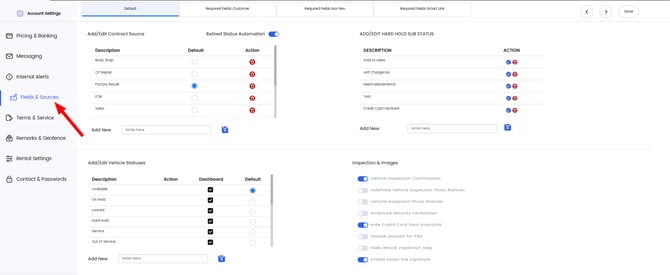
-
The Fields & Sources tab is where you can select what is required on step 1 of an agreement. *This is dealership specific and each dealership can choose which fields are require or not required.*
-
When boxes are checked, this will require advisors to gather this information before being able to go to step 2 of an agreement.
- Only select options that advisors will always be able to get, because it will require an admin password to bypass the empty fields.
- Common Adjustable required fields include
- Basic Customer Info(First Name, Last Name, Address etc.)
- Drivers License information
- Drivers License Image
- Insurance information
- Insurance image
- Credit Card information
- Accept Terms and Conditions
- Common Adjustable required fields include
Rental and Settings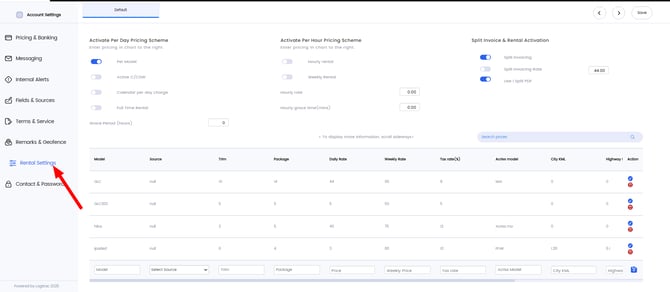
-
The rental settings tab is for dealerships that either rent out vehicles or if they are going to be charging a different daily rate for different models of vehicles. If you have a daily per day charge set in pricing in banking the daily rate set in this table for specific models will override that value!
- If you use split invoicing to charge for warranty this is where you will be able to turn this option on as well!
Contact and Passwords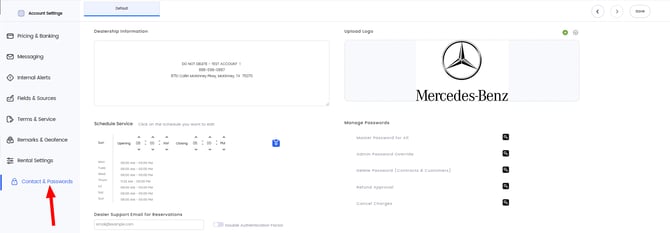
-
The Contact & Passwords tab is where you can go to edit your dealership information, hours, and logo that appears on contracts!
-
Additionally, you can change certain admin passwords that will help grant you the ability to perform different actions that require an admin password on the platform!