Accessing the Vehicles and Devices Section
-
Log In to Logitrac:
-
Enter your credentials to access the Logitrac dashboard.
-
-
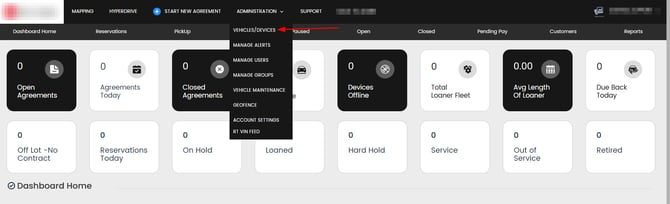
Navigate to Vehicles and Devices:
-
From the main menu, select the "Vehicles and Devices" tab to view the list of all vehicles in your inventory.
-

Adding a New Vehicle
-
Initiate the Add Vehicle Process:
-
Click the "Add Vehicle" button located at the top right of the Vehicles and Devices page.

If this button is missing please contact Logitrac Support!
-
-
Enter Vehicle Information:
-
Fill in the required fields with accurate vehicle details:
-
VIN (Vehicle Identification Number): Enter the unique VIN for the vehicle.
-
Make: Enter the vehicle's manufacturer.
-
Model: Enter the specific model of the vehicle.
-
Year: Enter the vehicle's manufacturing year.
-
Color: Optionally, enter the vehicle's color.
-
License Plate: Enter the vehicle's license plate number.
-
Odometer Reading: Enter the current odometer reading.
-
-
-
Add Additional Information:
-
Optionally, add any additional details such as vehicle tags, service records, or notes.
-
-
Save the Vehicle:
-
Click the "Save" button to add the new vehicle to the Logitrac system.
-
Verifying the New Vehicle
-
Refresh the Vehicles List:
-
After saving, refresh the Vehicles and Devices page to ensure the new vehicle appears in the list.
-
-
Verify Details:
-
Click on the newly added vehicle to verify that all information is correct.
-