-
Access the Alerts Section:
-
Log into your Logitrac account.
-
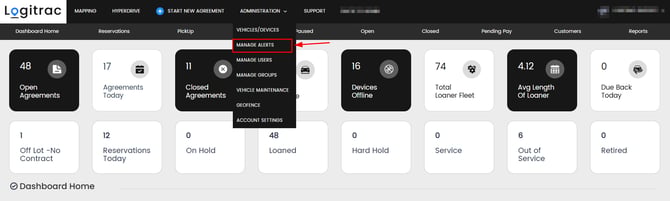
Navigate to the dashboard and select the "Alerts" tab.
-
-
Create a New Alert:
-
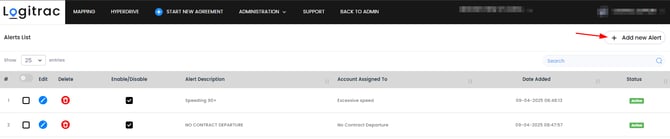
Click on the “Add new Alert” button.
-
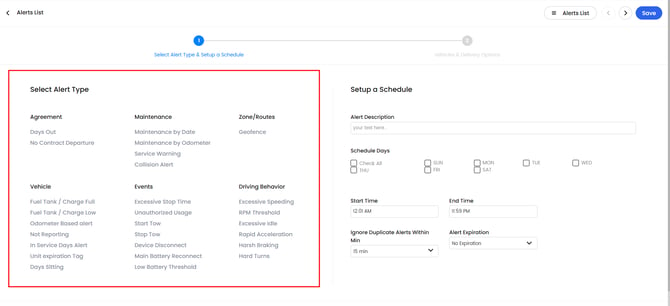
Select the type of alert you want to create (e.g., Email, SMS, Push Notification).
-
-
Configure Alert Settings:
-
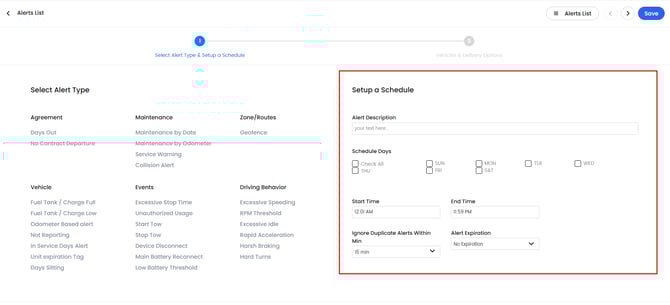
Enter a name for your alert.
-
Choose the criteria that will trigger the alert (e.g., low inventory, new task assignment, overdue tasks).
-
Set the conditions and thresholds for the alert (e.g., inventory drops below 10 units).
-
-
Set Notification Preferences:
-
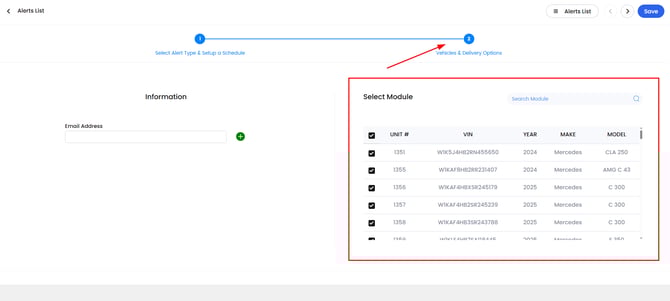
Specify who should receive the alert notifications (e.g., specific team members, all admins).
-
Select the notification method (e.g., email, SMS, in-app notification).
-
-
Save and Activate the Alert:
-
Review your settings to ensure everything is correct.
-
Click the “Save” button to create the alert.
-
Toggle the activation switch to enable the alert.
-
-
Manage Existing Alerts:
-
To edit an existing alert, click on the alert name in the list.
-
Make the necessary changes and save them.
-
To disable or delete an alert, use the corresponding buttons next to the alert name.
-


