Step 1 (finding the contract):
-
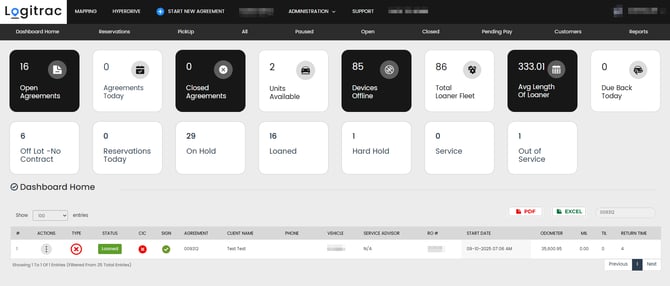
Navigate to the dashboard home screen of Logitrac
-
Use the search bar to filter down the specific agreement that you are looking to close out.

STEP 2 (closing the contract):
-
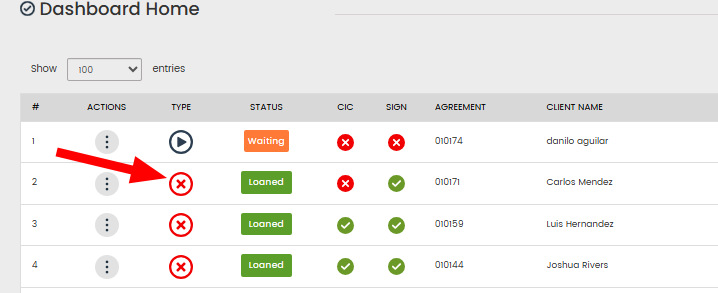
Click the red 'X' on the left side of the agreement to pull up the closing screen
-
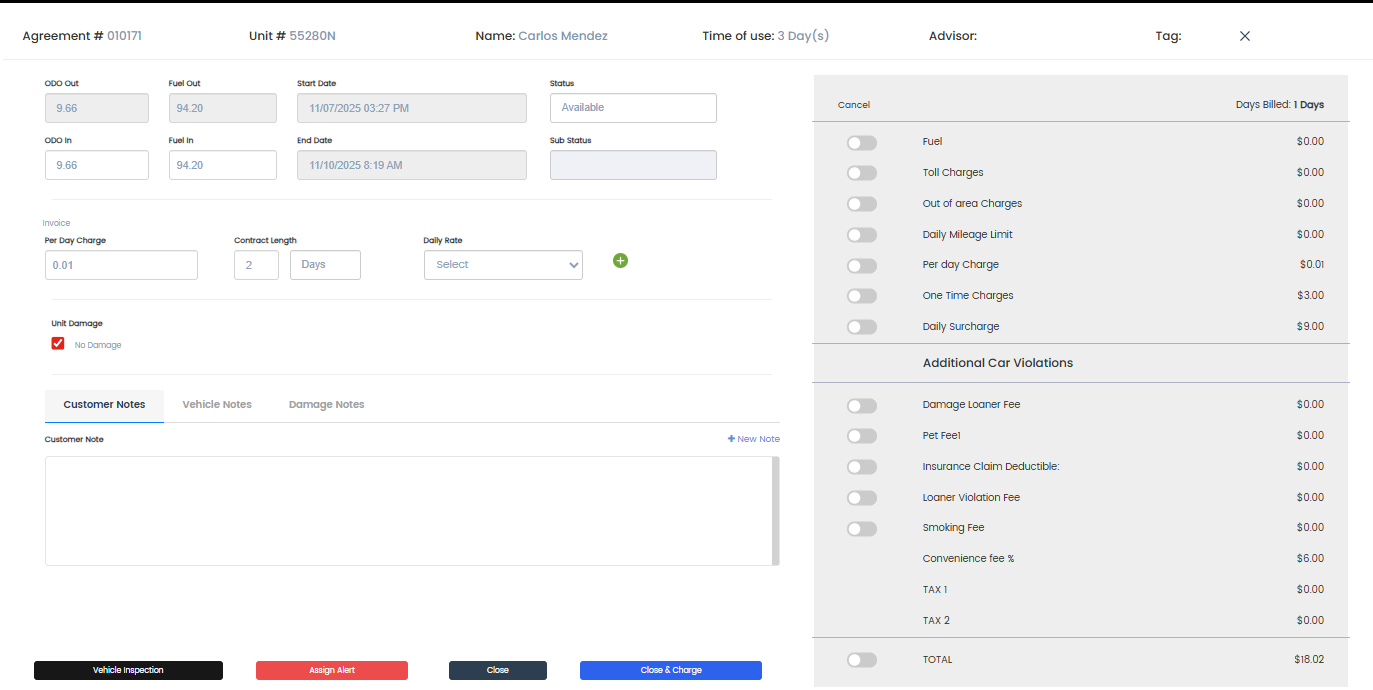
Verify all charges look correct
-
If any charges need to be canceled this can be done by toggling the bars next to the charge(this requires an admin password.)
-
-
Take after vehicle inspection photos (OPTIONAL)
-
Click the black vehicle inspection button to add after photos to the contract.
-
Most dealerships only take pictures in the case of loaners being returned damaged.

-
-
-
Assign Alert (OPTIONAL)
-
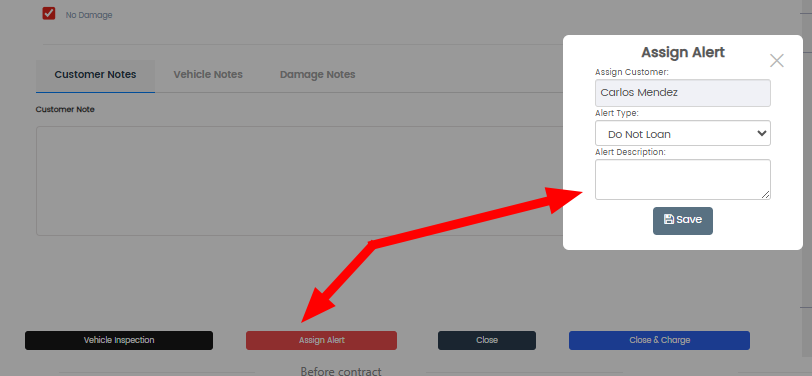
Click the 'Assign Alert' button to put the customer on a Do Not Loan list.
-
This is helpful when a customer is rather difficult or brings the car back in poor shape. The next time the customer comes in for a loaner a pop up will alert you that the customer is on a do not loan list and will require an ADMIN password to override.
-
-
-
Close/Close & Charge
-
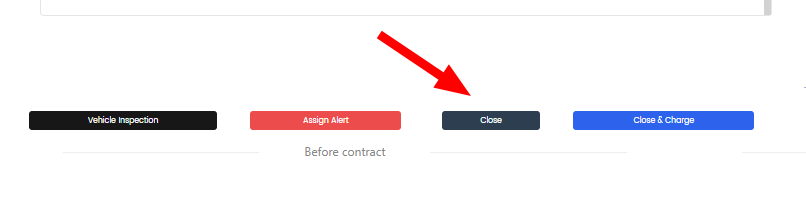
Choosing the "Close" button will put any contract that has an amount owed into a pending pay status on the dashboard that can be reviewed and modified/charged at a later time.
-
Choosing the "Close & Charge" button will charge any amount owed immediately upon closing a contract.
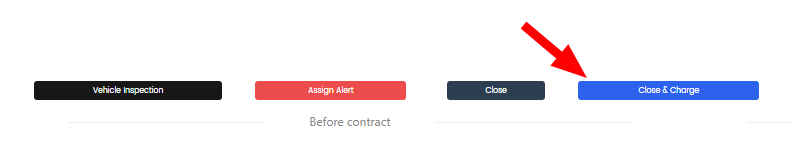
*THESE BUTTONS WILL DO THE SAME THING IF AUOMATED PAYMENT IS TURNED ON IN ACCOUNT SETTINGS(always charge)*
-


