Step 1: Locate the Open Agreement
- Log in to your Logitrac account.
- Select HyperDrive from the navigation bar.
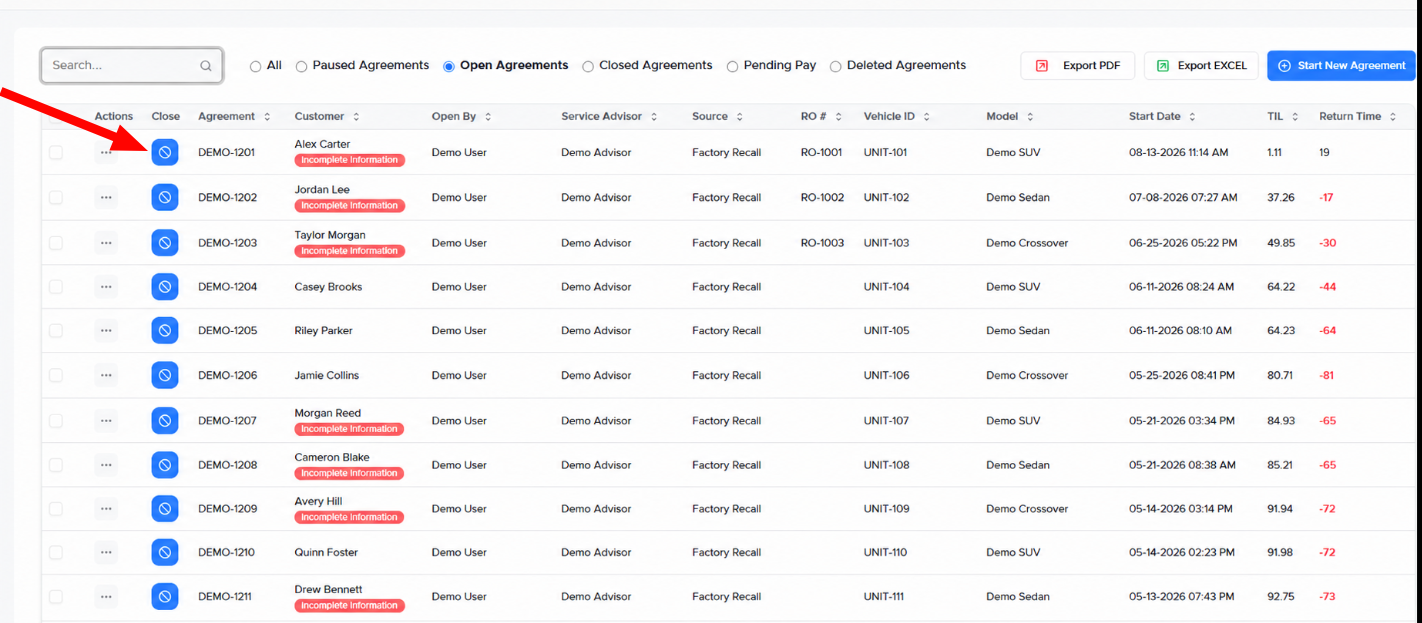
- Open the Dashboard or navigate to Agreements and select Open from the sidebar.
- Use the search options to locate the agreement you want to close.
- Select the agreement’s closing action to open the closing screen.
You can search using available information such as the customer’s name, agreement number, unit number, or VIN.
Before closing the agreement, review the displayed information and confirm that all details are correct.
Verify information such as:
- Return date and time
- Return mileage
- Fuel level
- Rental charges
- Mileage charges
- Fuel charges
- Additional fees
- Toll charges, when available
- Total amount owed
Complete any required return information and confirm that the calculated charges are accurate before continuing.
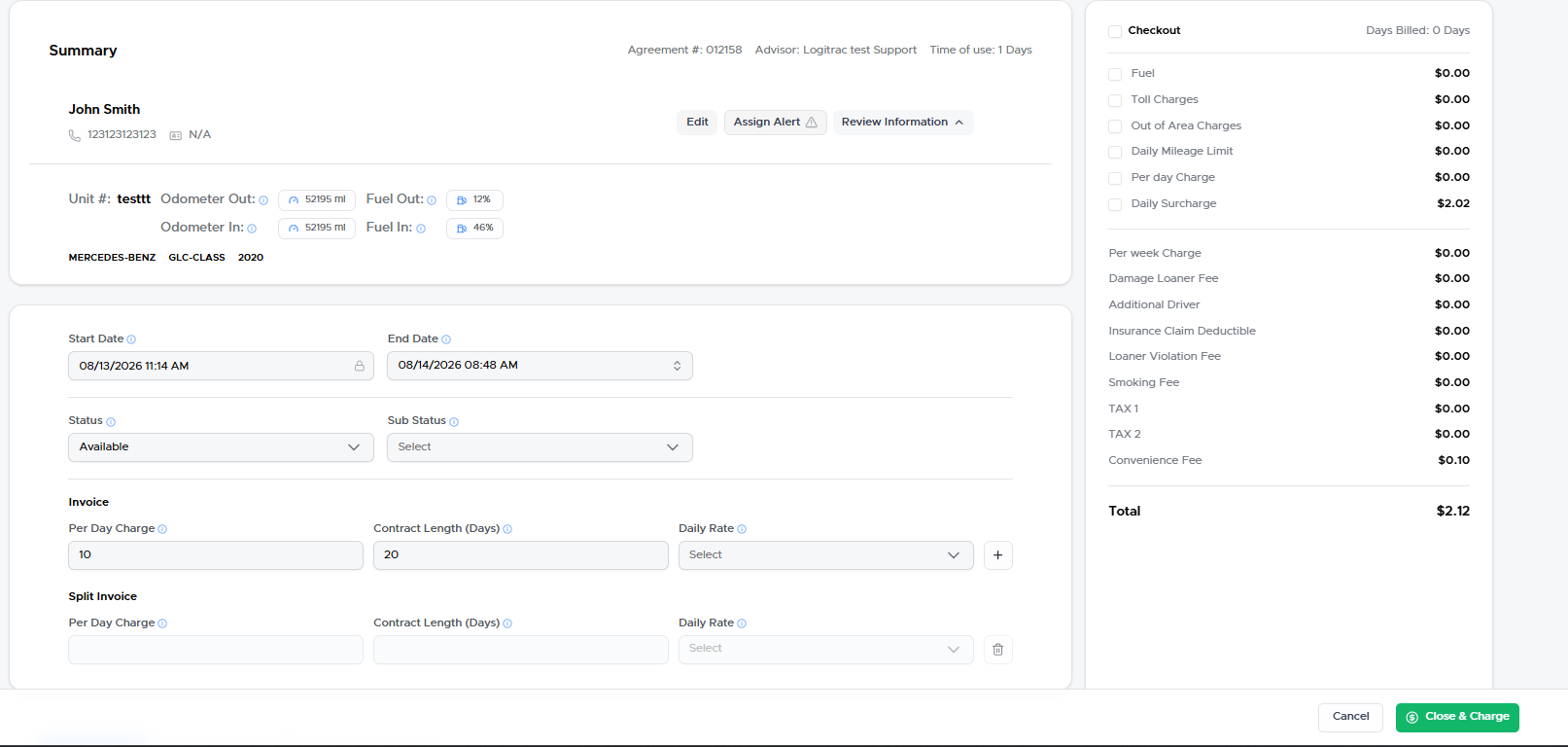
If a displayed charge should not be collected, use the toggle beside that charge to remove or cancel it from the final amount.
Depending on your dealership’s settings and the type of adjustment being made, an administrator password may be required to modify or remove a charge.
Review the updated total after making any adjustments.
Adding a Return Vehicle InspectionReturn inspection photos are optional unless otherwise required by your dealership.
To add return photos:
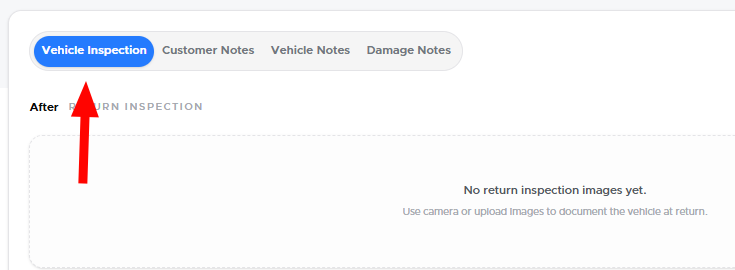
- Select the Vehicle Inspection option from the closing screen.
- Take or upload photos showing the vehicle’s condition at return.
- Clearly document any new damage or other concerns.
- Save the inspection photos to the agreement.
Many dealerships add return photos when a vehicle is returned with damage or when additional documentation is needed.
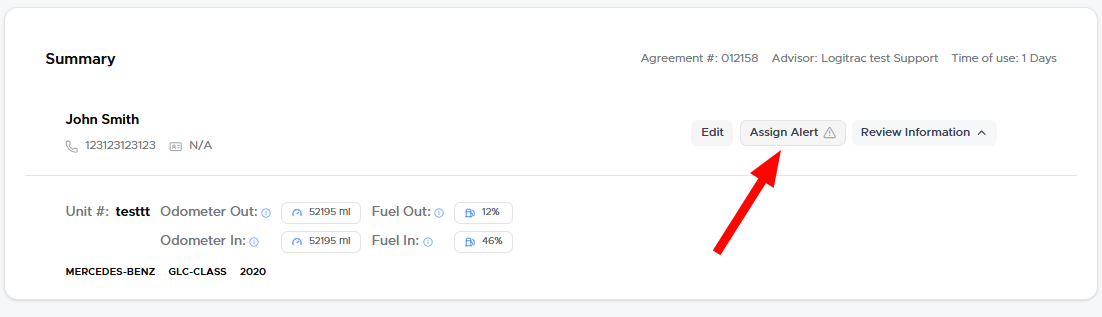
If necessary, select Assign Alert to add the customer to the dealership’s Do Not Loan list.
This may be helpful when a customer:
- Returns a vehicle with significant damage
- Repeatedly violates dealership policies
- Is difficult to work with
- Should require approval before receiving another dealership vehicle
The next time the customer is selected for an agreement, Logitrac will display an alert. An administrator password may be required to override the restriction.
The available closing button depends on the amount owed and your dealership’s automated payment settings.
Close and Pending Pay
Select Close and Pending Pay to close the agreement without immediately collecting the remaining balance.
The agreement will be moved to Pending Pay, where it can be reviewed, modified, or charged later.
Use this option when:
- Payment will be collected at a later time
- The final amount requires additional review
- The dealership needs to follow up with the customer
- Another department will process the payment
Close and Charge
Select Close and Charge to immediately attempt to collect the amount owed using the customer’s available payment method.
Confirm the final total before selecting this option.
Agreements with Automated Payment EnabledWhen automated payment is enabled and the agreement has an amount owed, the Close and Pending Pay option will not be displayed. The agreement must be completed using Close and Charge.
If no amount is owed, the button will display Close because there is no remaining balance to collect.
The available button will therefore appear as follows:
- Amount owed with automated payment enabled: Close and Charge
- No amount owed: Close
- Automated payment disabled with an amount owed: Close and Pending Pay or Close and Charge
After selecting the appropriate option, confirm that the agreement closes successfully and review the payment result when applicable.