STEP 1: Logging into Logitrac
-
User your provided Login credentials to access the home page of the website.
STEP 2: Starting new agreement
-
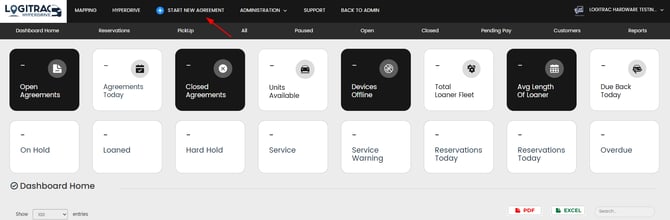
Click the "START NEW AGREEMENT" button on the dashboard home screen.
-
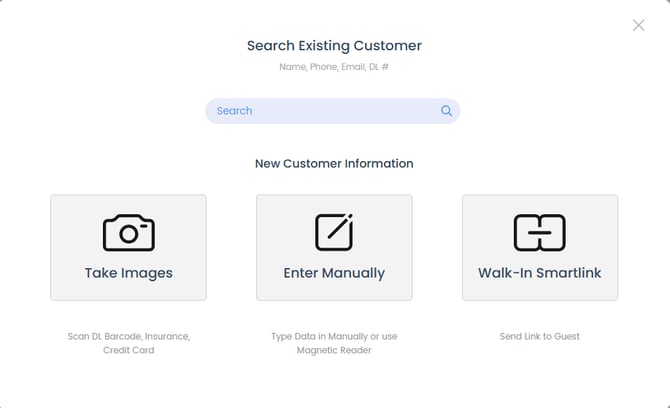
Choose from one of the three options given to start a new agreement or if you have an existing customer returning, use the search bar to quickly pull them back up.


STEP 3: Take Images(Scanning)
This option allows you to use a desktop scanner or an iPad to scan customer information to auto-populate all fields required to move on with the agreement.
*IMPORTANT*
Make sure all pictures are of good quality or you risk having fields missing after scans are complete

STEP 1(customer information):
-
Scan customer information in following order
-
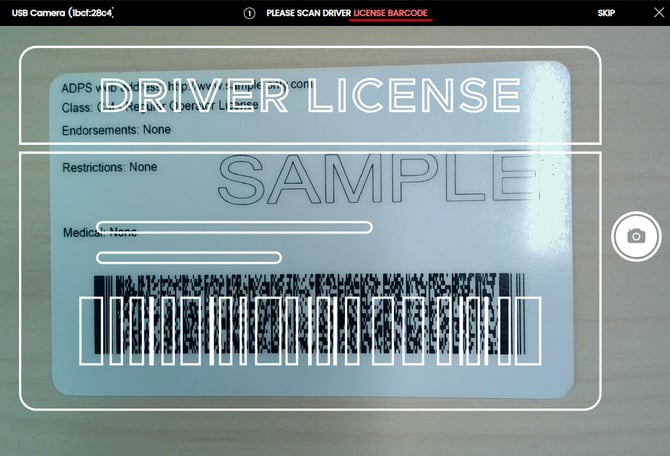
Drivers license barcode
-
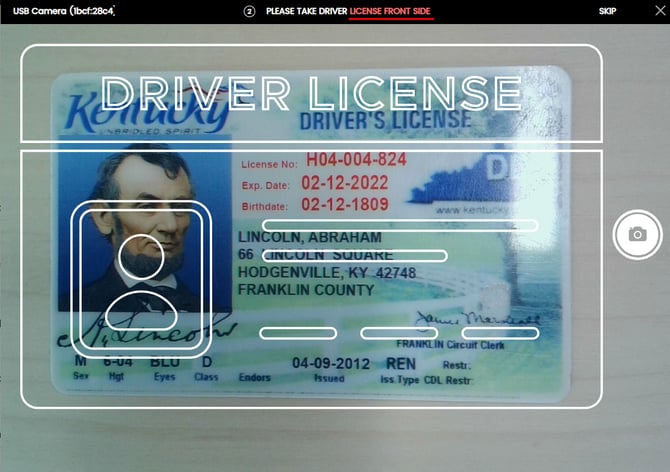
Front of drivers license
-
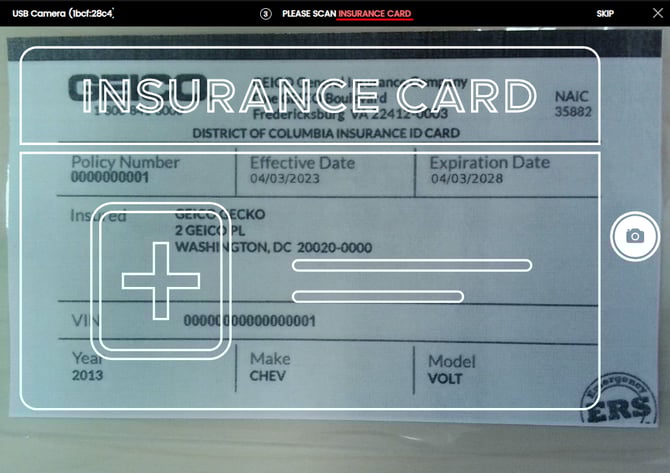
Insurance card(picture off of phone works as well)
-
Credit Card
-
No picture is saved of the credit card this is purely to pull numbers off of the card to prevent having to manually enter them
-
Upon saving the customer profile the credit card will be soft-authorized to ensure that the card is valid/real.
-
-
After scans verify all customer information is correct, and fill out any other required fields decided by your dealership(required fields will highlight red)
-
Save the customer information.
-
-
Fill out the rest of the fields that are applicable on step on of the agreement
-
Repair order #
-
Loaner/Service advisor
-
Contract Length(can be changed at a later date)

-


STEP 2(selecting vehicle):
-
Select 2nd step on agreement process

-
Use the search bar to locate the car you wish to put the customer into. Once you have located the car, click the vehicle and the selected vehicle will highlight blue.
-
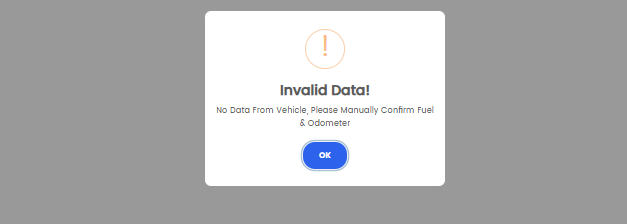
If any warnings come up, please verify odometer to make sure the selected vehicle is reading properly.
-


STEP 3(taking photos of vehicle):
-
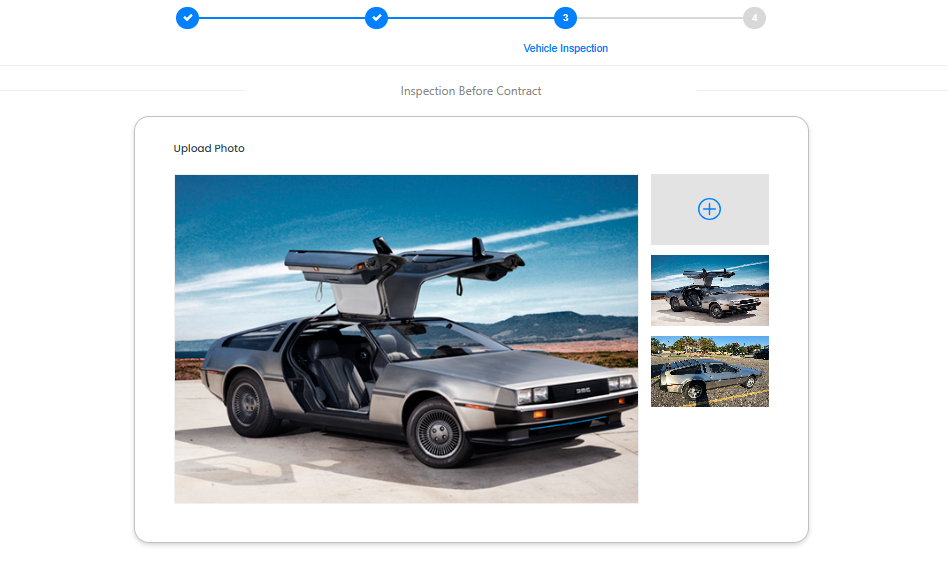
Click on step 3 of the agreement process
-
Click the blue plus button to perform a walk around vehicle inspection of the loaner.
-
You can add as many or as little photos that you would like
-
-
After taking pictures select the 'Finish' button to have them uploaded to the contract.

STEP 4(customer signature):
-
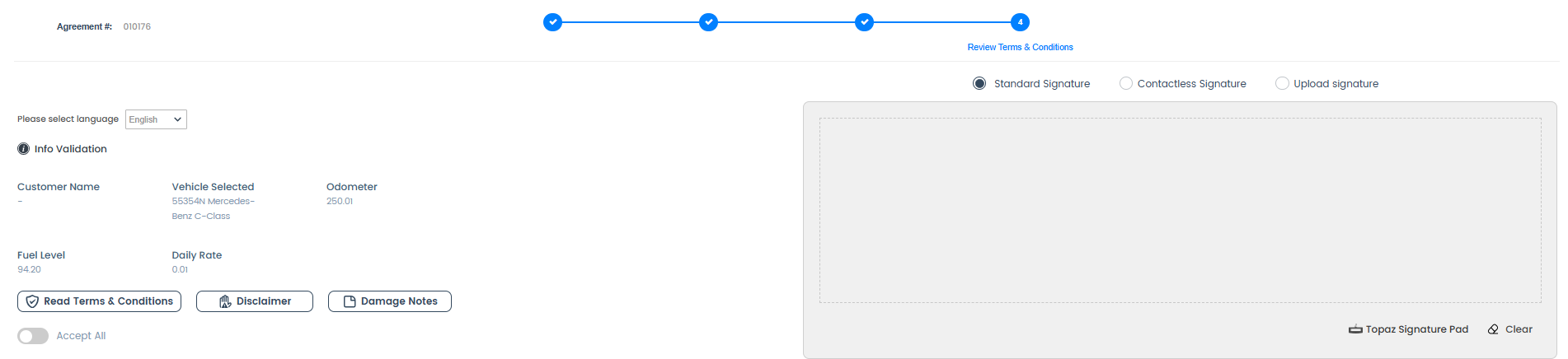
Select step 4 of the agreement process.

-
Have the customer review and agree to terms & conditions.
-
After the customer has accepted terms, have the customer sign & press finish!
-
