- Log in to your Logitrac account.
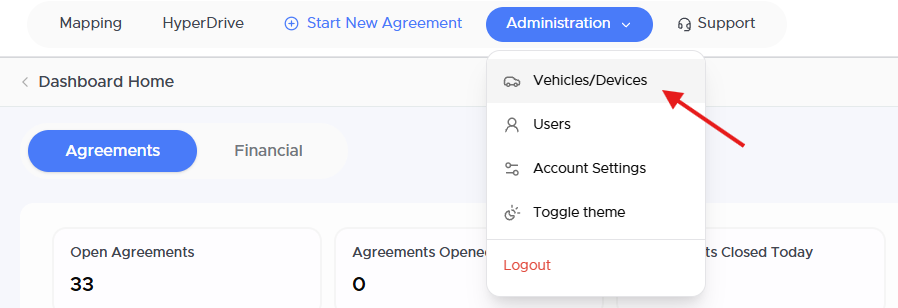
- Select Administration from the navigation bar at the top of the screen.
- Select Vehicles and Devices from the Administration menu.
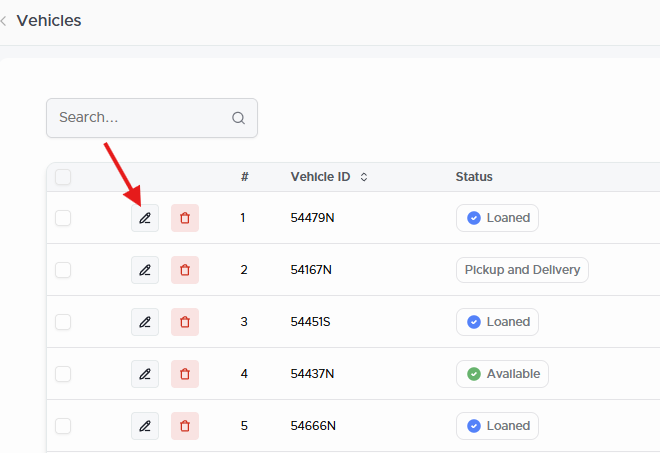
The Vehicles screen displays the units associated with your dealership.
Use the search field or scroll through the vehicle table to locate the unit you want to update.
You can identify a vehicle using information such as:
- Vehicle ID
- VIN
- License plate
- Make
- Model
Before editing the profile, confirm that you have selected the correct vehicle.
Opening the Vehicle ProfileSelect the pencil icon located on the left side of the vehicle’s row to open the vehicle editing screen.
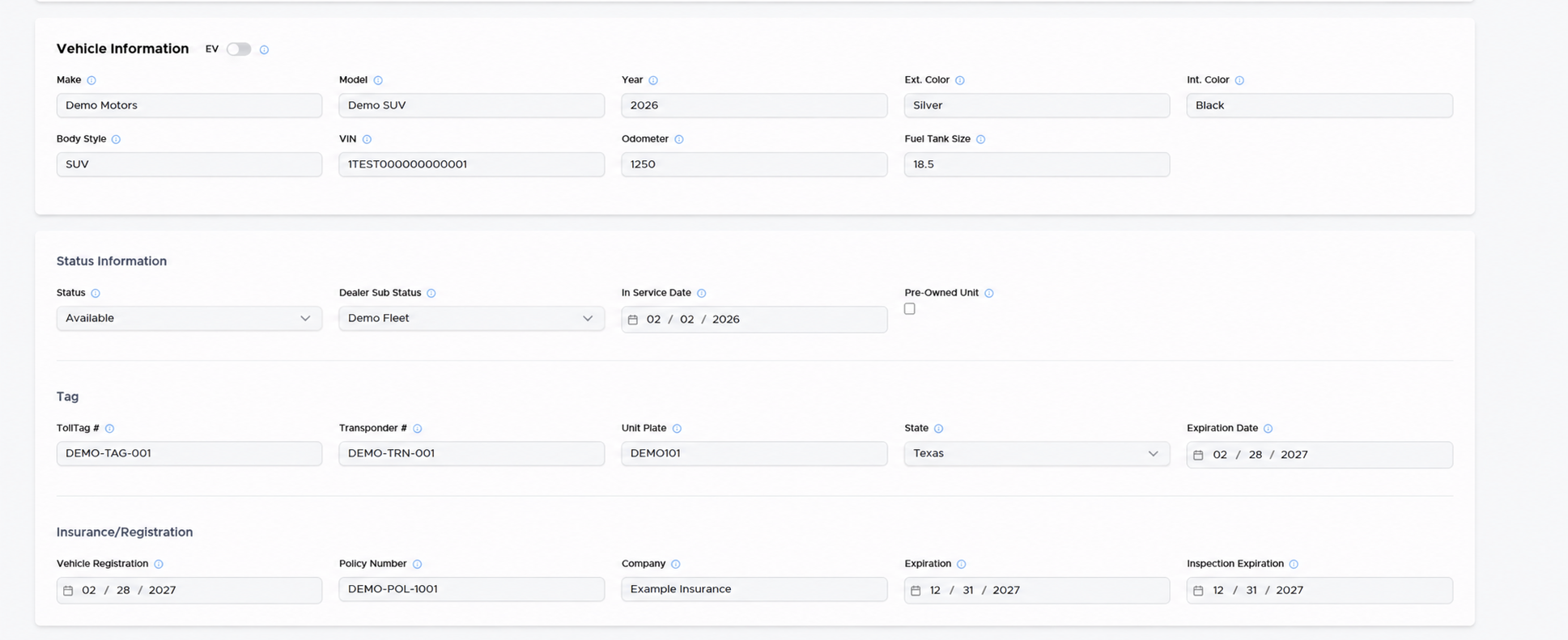
Review the vehicle profile and update the necessary fields.
Available vehicle information may include:
- Vehicle ID: The unit number or identifier used by your dealership.
- VIN: The vehicle’s Vehicle Identification Number.
- License Plate: The plate currently assigned to the vehicle.
- Make: The vehicle manufacturer.
- Model: The vehicle model.
- Year: The vehicle’s model year.
- Color: The vehicle’s exterior color.
- Odometer: The vehicle’s current mileage.
- Fuel Level: The vehicle’s reported or recorded fuel level.
- Status: The vehicle’s current operational status.
- In-Service Date: The date the vehicle entered your dealership’s fleet.
- Additional Fields: Other information available based on your account configuration.
After making the necessary updates:
- Review each changed field for accuracy.
- Complete any required fields.
- Select Save to update the vehicle profile.
A confirmation message will appear when the vehicle information has been successfully updated.
Verifying the Updated InformationReturn to the Vehicles table and locate the vehicle again. Confirm that the updated information appears correctly.
If the changes do not appear immediately, refresh the page and review the vehicle profile again.
TroubleshootingUnable to Save the Vehicle
Confirm that all required fields have been completed and review the form for validation messages. Incorrectly formatted or missing information may prevent the profile from being saved.
Vehicle Information Did Not Update
Refresh the page and reopen the vehicle profile. If the original information still appears, contact Logitrac Support for assistance.
Vehicle Is Missing
Use the search field to check for the vehicle by VIN, plate, or vehicle ID. If the vehicle has not been added to the account, select Add New Vehicle from the Vehicles screen to create its profile.
Always verify vehicle information before saving. Incorrect VINs, plates, mileage, or vehicle IDs may affect agreements, integrations, reports, and tracking records.