Accessing Vehicle Information
-
Log In to Logitrac:
-
Enter your credentials to access the Logitrac dashboard.
-
-
Navigate to Vehicles and Devices:
-
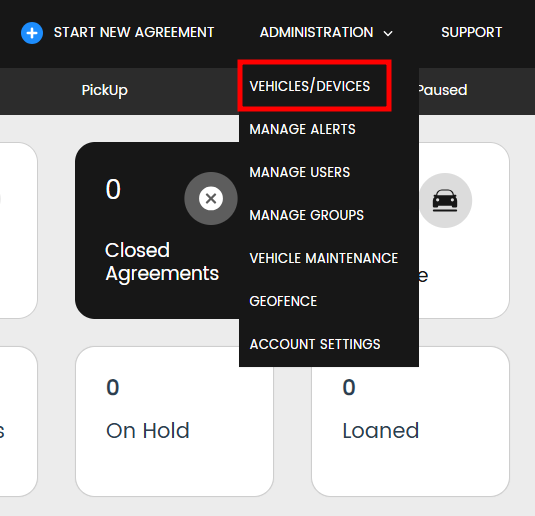
From the main menu, select the "Vehicles and Devices" tab to view the list of all vehicles in your inventory.
-

Selecting a Vehicle to Edit
-
Locate the Vehicle:
-
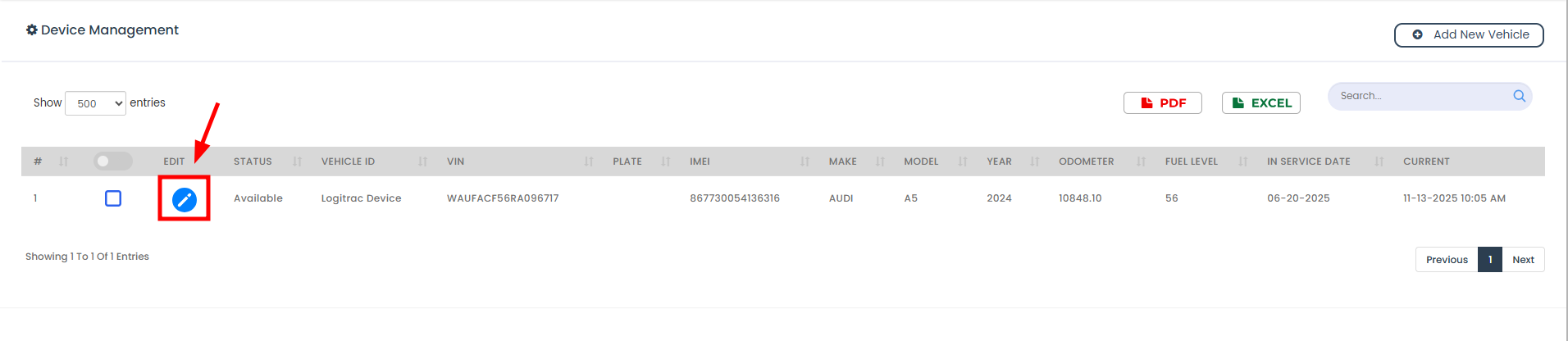
Use the search bar or scroll through the list to find the vehicle you want to edit.
-
-
Open Vehicle Details:
-
Click on the blue pencil icon to open the vehicle editing page.
-

Editing Vehicle Information
-
Update Vehicle Information:
-
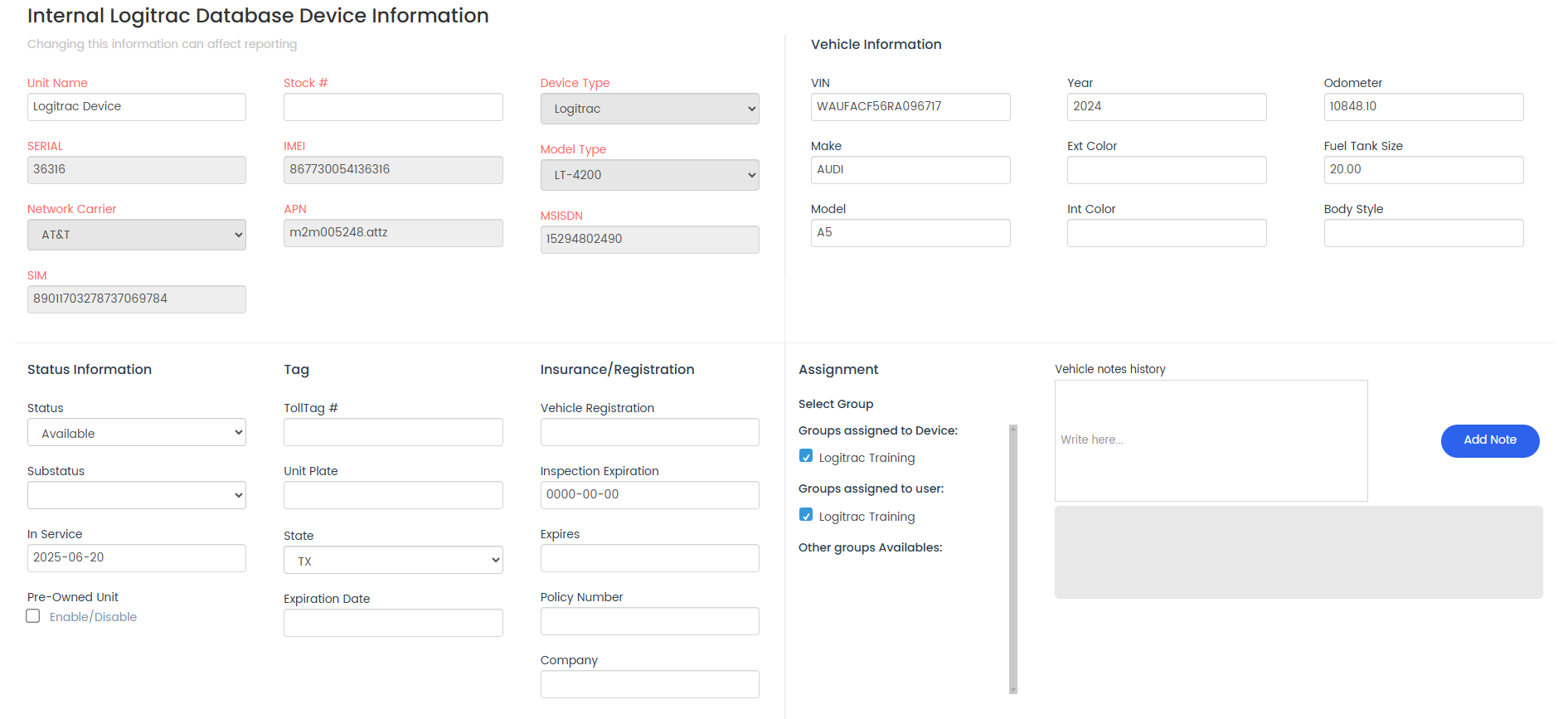
VIN Number: Make changes to the VIN number if necessary.
-
Make: Update the vehicle's make.
-
Model: Update the vehicle's model.
-
Year: Update the vehicle's year of manufacture.
-
Additional Fields: Update any additional fields such as color, mileage, or license plate number.
-
-
Save Changes:
-
Once all necessary updates have been made, click the "Save" button to apply the changes.
-

Verifying Changes
-
Review Updated Information:
-
After saving, review the updated vehicle information to ensure accuracy.
-
-
Confirmation Message:
-
A confirmation message will appear indicating that the vehicle information has been successfully updated.
-
Best Practices for Editing Vehicle Information
-
Double-Check Data:
-
Always double-check the information before saving to avoid errors.
-
-
Consistent Updates:
-
Regularly update vehicle information to maintain an accurate fleet inventory.
-
-
Backup Information:
-
Keep a backup of original vehicle details before making significant changes.
-
Troubleshooting Common Issues
-
Unable to Save Changes:
-
Ensure all required fields are filled out correctly. Check for any validation errors indicated on the form.
-
-
Information Not Updating:
-
If the information does not appear to update, refresh the page and check again. If the issue persists, contact Logitrac support.
-
-
Missing Vehicle:
-
If a vehicle is missing from the list, verify it has been added correctly. If not, add the vehicle through the "Add Vehicle" option.
-