Method 1: Clearing Cache via the Browser Menu
-
Open Google Chrome:
-
Ensure you have Google Chrome open on your device.
-
-
Access the Settings Menu:
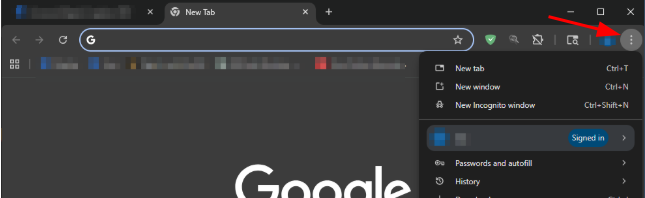
-
Click on the three vertical dots located in the top right corner of the browser window.
-
-
Navigate to Clear Browsing Data:
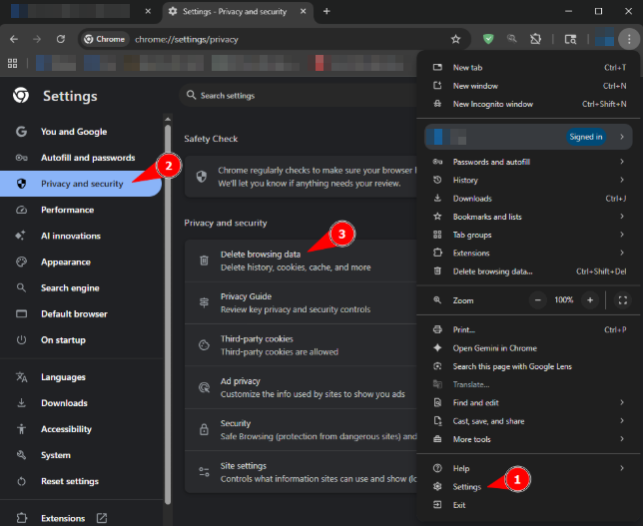
-
From the dropdown menu, select Settings (if necessary), then go to Privacy and security and click on Delete browsing data.
-
-
Set the Time Range:
-
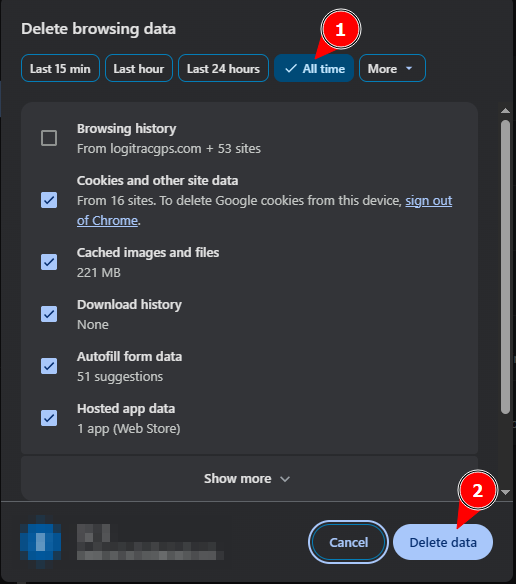
A window will appear allowing you to choose the time range for clearing data.
-
Select All time from the dropdown menu to clear all cached data.
-
-
Clear the Cache:
-
Make sure the Cached images and files option is checked.
-
Click Clear data to remove the cache.
-
Method 2: Clearing Cache Using a Keyboard Shortcut
-
Open Google Chrome:
-
Ensure that Chrome is your active window.
-
-
Use the Keyboard Shortcut:
-
Press Ctrl + Shift + Delete on your keyboard (Windows) or Command + Shift + Delete (Mac).
-
-
Set the Time Range and Clear Data:
-
The Clear browsing data window will appear.
-
Select All time for the time range, then click Clear data to remove the cache.
-