If you would like to get a head start on agreements before your customers arrive at the dealership, we recommend using the Reservation tab.
To create a reservation:
-
Navigate to the Reservation tab.

-
Select Create New Reservation.

-
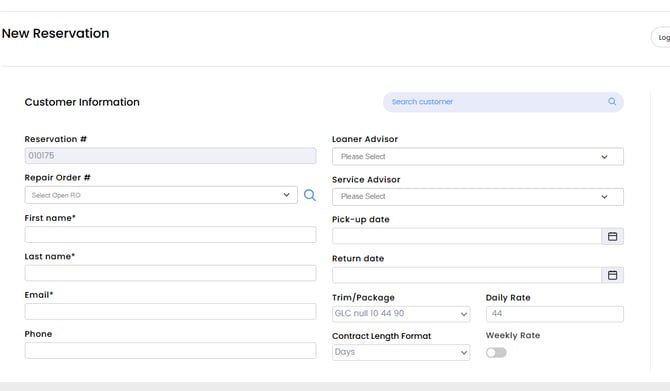
Fill out the customer's information or select an existing customer from your account.
-
You will have the option to reserve a specific vehicle, but this step is not required.
-
After completing all required fields, click Reserve in the top-right corner.



Once saved, the reservation will be created for that customer!
You can view existing reservations by either staying on the Reservation tab or by navigating to the Dashboard and selecting the "Reservations Today" tile.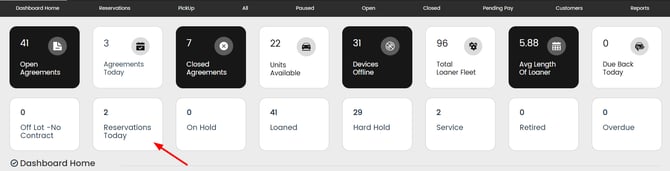
Important:
When a reservation is created, customers automatically receive a link to provide their information before arriving at the dealership. If the form remains incomplete, you can automate second and third reminders via the Message Template tab in Account Settings. These reminders can be scheduled for specific intervals leading up to the reservation date to ensure all data is collected before the customer walks through your door.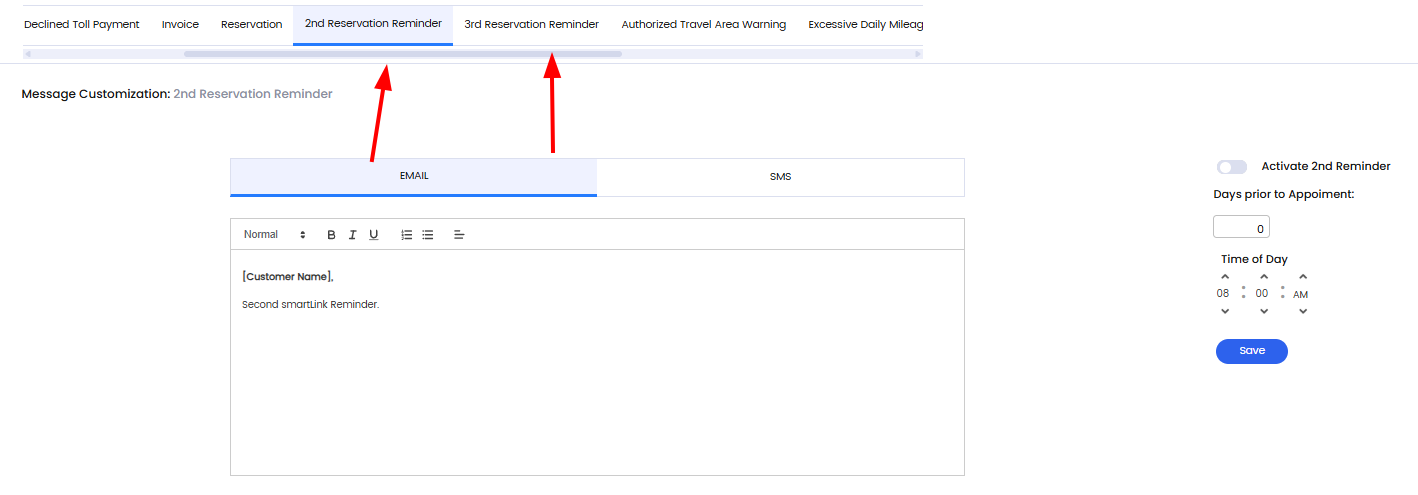
Also if you wish to edit a reservation you can always do so by selecting the pencil icon to the right of the reservation under the reservation tab!