✅ Step-by-Step Instructions
-
Locate the Agreement
-
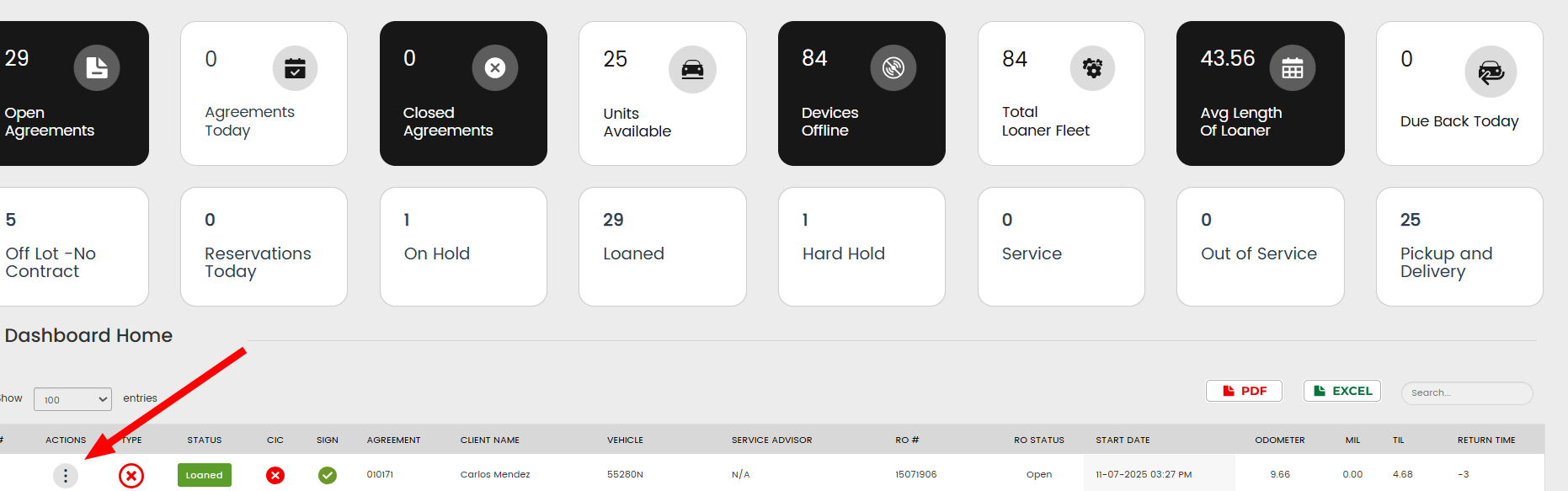
Navigate to the contract that needs the vehicle correction.
-
Click the Actions menu on the left-hand side.
👉
-
-
Reopen the Agreement
-
Select Edit from the Actions menu.
-
This will reopen the original agreement workflow.
-
-
Access the Vehicle Selection
-
Proceed to Step 2 of the agreement process.
-
Click the “Change Vehicle” button.

-
-
Choose the Correct Vehicle
-
A list of available vehicles will appear.
-
Click on the correct vehicle to reassign it to the contract.
-
-
Finish & Save
-
Once the correct vehicle is selected, click Finish.
-
The agreement will now reflect the new vehicle assignment.
-
⚠️ Important Note
This tool is NOT designed for customers swapping into a new loaner vehicle.
-
✅ Use this feature only when the original contract was created with the wrong vehicle selected.
-
❌ Do NOT use this to switch vehicles when a customer is returning one car and leaving with another.
Using the "Change Vehicle" button to handle real customer swaps will override data and make it appear as though the customer had the new vehicle the entire time.
✅ Best Practice for Real Vehicle Swaps
If a customer returns a loaner and leaves with a different one:
-
Close the original contract, and
-
Open a new contract with the new vehicle.
This ensures billing, mileage, signatures, fuel, and time tracking remain accurate.