Step 1: Navigate to Account Settings
-
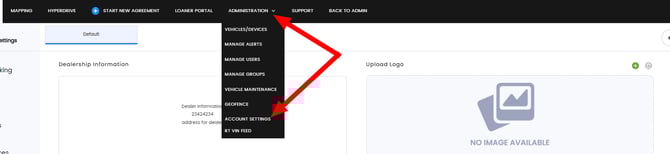
From the main dashboard, go to the Administration tab.
-
Click on Account Settings from the dropdown.
Step 3: Open Contact & Passwords
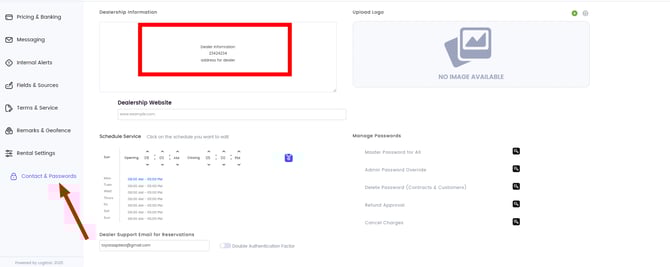
On the left-hand side of the Account Settings page, click the Contact & Passwords tab.
Step 4: Update Dealership Information
Within the Dealership Information box, you’ll see the editable fields:
-
Line 1: Dealership Name
-
Line 2: Phone Number
-
Line 3: Dealership Address
⚠️ These details appear on customer contracts, so ensure they are always accurate.
You can also update:
-
Business Hours
Step 5: Save Your Changes
Once updates are complete, click Save at the bottom of the page.
✅ You have now successfully updated your dealership contact information!