The Hyperdrive Dashboard in Logitrac provides a quick and comprehensive overview of your fleet's status and performance. It consolidates critical information into easily accessible tiles, allowing you to monitor and manage your operations efficiently.
Accessing the Hyperdrive Dashboard:
-
Step 1: Log in to your Logitrac account.
-
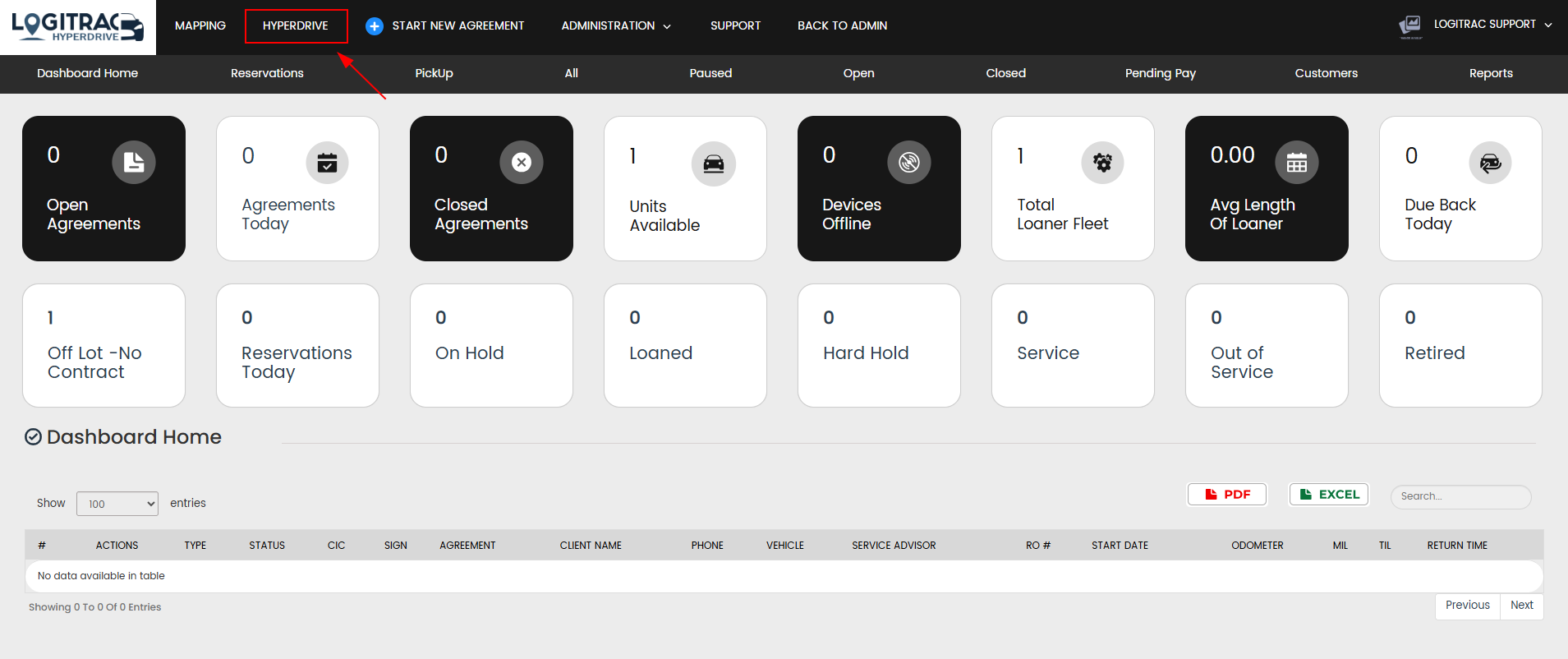
Step 2: Navigate to the "Dashboard" tab on your main menu. This will open the Hyperdrive Dashboard interface.

-
Understanding Dashboard Tiles:
-
The dashboard is organized into various tiles, each representing different aspects of your fleet's performance and status.
-
Example Tiles:
-
Vehicles Off-Lot: Shows the number of vehicles currently off the dealership lot without an active contract.
-
Vehicles On-Hold: Displays vehicles that are temporarily on hold due to maintenance or other reasons.
-
Due Back Today: Lists the vehicles that are scheduled to be returned today.
-
Overdue: Indicates vehicles that are past their return date.
-
Contracts Pending Payment: Shows contracts that are closed but still require payment processing.
-
-
-
Interacting with Tiles:
-
Clicking on Tiles:
-
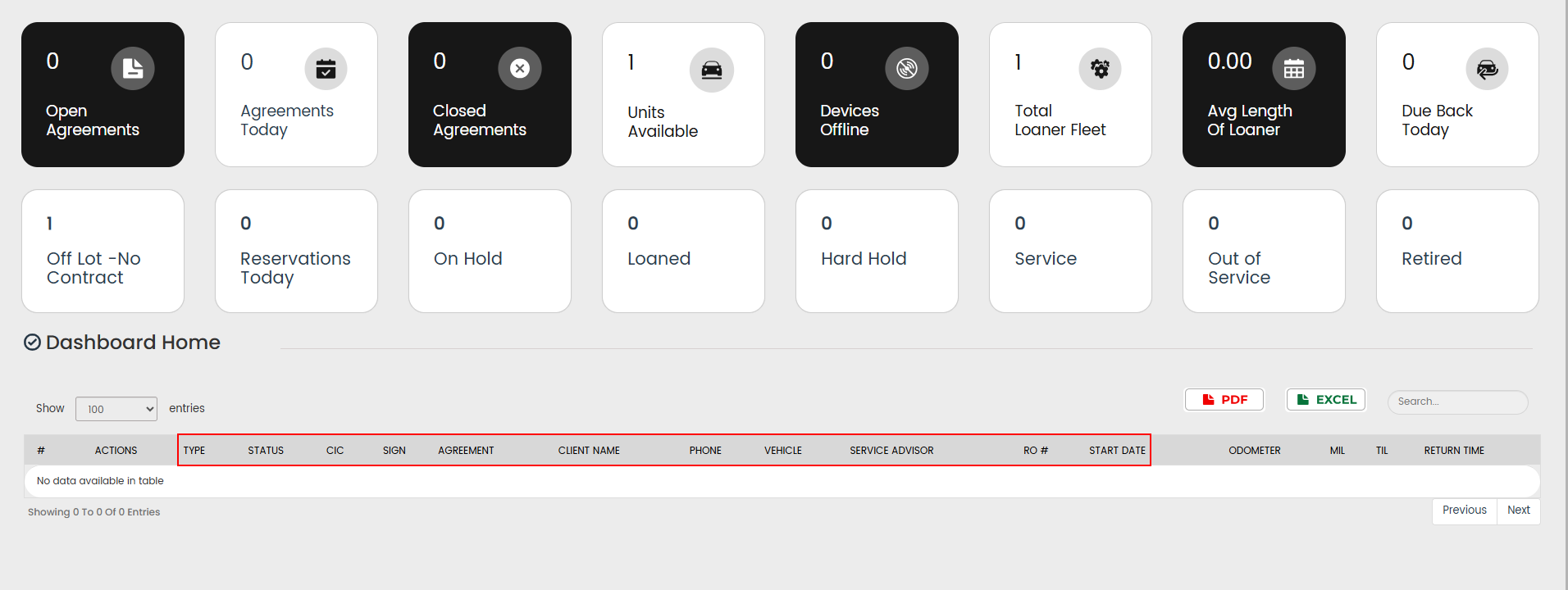
Click on any tile to view more detailed information about the vehicles or contracts it represents.
-
For example, clicking on the "Vehicles Off-Lot" tile will display a list of all vehicles currently off the lot.
-
-
Filtering Data:
-
Use the filtering options available within each tile to narrow down the information based on criteria such as vehicle type, status, or customer.
-
-
-
Monitoring Real-Time Updates:
-
The dashboard tiles are updated every 10 minutes. To View real-time data, please select the tile you wish to view and the table populated will reflect real-time data.
-
Example Use Case:
-
If a vehicle is returned to the lot, the "Due Back Today" and "Overdue" tiles will automatically update to reflect the return.
-
-
-
Utilizing Quick Access Features:
-
Quick Actions:
-
Each tile provides quick access to actions relevant to the data it displays.
-
For example, in the "Contracts Pending Payment" tile, you can click on a contract to initiate the payment process.
-
-
Navigating to Detailed Reports:
-
Use the links provided within each tile to navigate directly to more detailed reports and data analysis tools.
-
This allows you to dive deeper into specific metrics without leaving the dashboard.
-
-
-
Configuring the Dashboard:
-
Customizing Tiles:
-
Users with administrative permissions can customize the dashboard tiles to display the most relevant information for their operations.
-
To customize, click on the "Settings" icon usually located in the top-right corner of the dashboard.
-
Select the tiles you want to add, remove, or rearrange based on your preferences.
-
-
Setting Alerts:
-
Configure alerts to notify you of critical changes directly on the dashboard.
-
Navigate to the "Manage Alerts" tab, set up the desired alerts, and choose to display these alerts on your dashboard tiles.
-
-
-
Example Use Cases:
-
Fleet Management:
-
Use the "Vehicles Off-Lot" tile to monitor which vehicles are currently in use and ensure they are returned on time.
-
Check the "Due Back Today" tile every morning to prepare for incoming returns.
-
-

By effectively utilizing the Hyperdrive Dashboard, you can maintain a high level of situational awareness, streamline your operations, and quickly respond to any issues that arise. For further customization or advanced features, refer to other sections of the help center or contact Logitrac support for assistance.