Checking Vehicle Enrollment in Hypertolls
Before reviewing your tolling reports, it’s important to confirm that your vehicles are properly enrolled in Hypertolls.
-
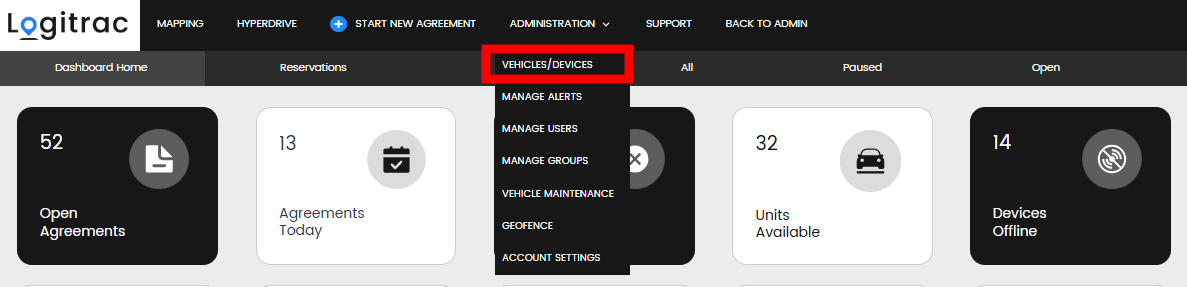
Navigate to the Administration tab.
-
Click on Vehicles and Devices.
-
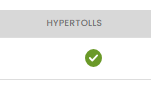
You'll see a list of all vehicles within your account. Once Hypertolls is activated, a new column on the far right will appear indicating the enrollment status:
-
✅ Green check – Vehicle is enrolled
-
❌ Red X – Vehicle is not enrolled
-
-
To ensure proper enrollment, make sure each vehicle has:
-
The correct license plate number
-
The correct plate state
-


Accurate plate information is essential for tolls to be properly assigned and charged.
If you are enrolled with Hypertolls, you will have access to a Tolling Report that tracks any tolls incurred by customers while they are in an active agreement.
Here’s how it works:
-
When a customer drives through a toll gantry, the toll is passed on to us. Once received, the customer will be automatically charged for that toll.
Toll charge statuses you may see:
-
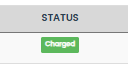
Charged – The customer has already been successfully charged.
-
Pending – The charge has not yet been attempted. This process runs automatically, so pending tolls will resolve after some time.

-
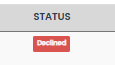
Declined – The charge to the customer failed. You can click the Declined button to manually reattempt the charge.
-
*We automatically attempt to process this charge three times. If all three attempts are declined, the toll will be added to the dealership’s monthly invoice.
-
-
Dealer Owes – This status appears if:
-
A vehicle went through a toll gantry without an active agreement.

-


If you have any questions about the Tolling Report, please use the Support tab or call us at 888-598-0887.