Retiring a device resets it for installation in another vehicle, ensuring precise fleet tracking and reliable data integrity for ongoing operations.
Vehicle/Device Management
-
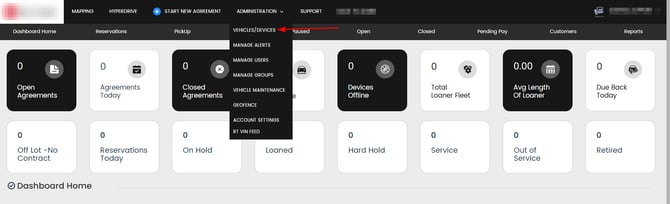
Navigate to Vehicles/Devices:
-
From the Dashboard Home, select the "Vehicles/Devices" tab to view the list of all devices.
-

Retiring a Device from the Current Vehicle
-
Select the Device:
-
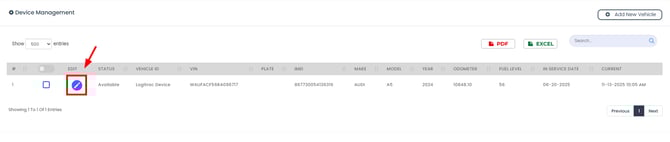
Identify and select the device you want to retire from the list. You can use the search bar to help filter down the device you are looking for.
-
-
Open Device Details:
-
Click on the Edit button(Pencil Icon) next to the Vehicle ID to open its details page.
-
-
Retire the Device:
-
Please remove the Device from the vehicle prior to retiring the device to prevent the device from pulling the same vehicle data.
-
Locate the Status Tab & update the status to "Retired"
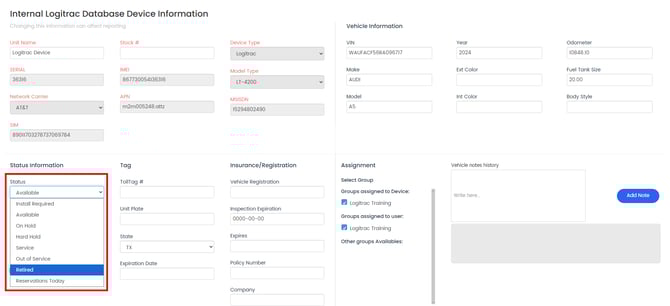
- Click on "Finish" at the bottom right of the page.
-
The device will now be wiped of all previous information and be ready for a new vehicle!
-

