Step 1: Access the Closed Agreement
-
Login and Navigate: Log into the Logitrac platform using your administrative credentials. Access the ‘Dashboard’ section where agreements are listed.
-
Locate the Agreement: Find the closed agreement for which you need to process a refund. You can use the search function or filters to narrow down to specific agreements by status or customer details.
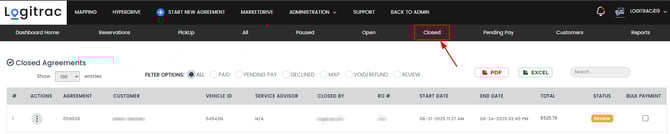
Step 2: Initiate the Refund Process
-
Select the Agreement: Click on the agreement to view detailed information. Navigate to the ‘Actions’ menu which is typically found as part of the agreement details.
-
Choose Refund Option: Within the ‘Actions’ menu, find and select the ‘Refund’ option. This is used to initiate the refund process for the agreement.
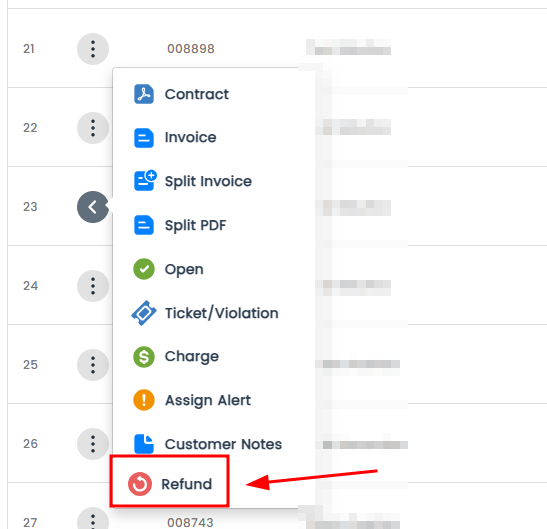
Step 3: Enter Refund Details
-
Specify Refund Amount: Enter the amount that needs to be refunded. The platform may automatically suggest the full amount paid, but you can modify this if a partial refund is required.
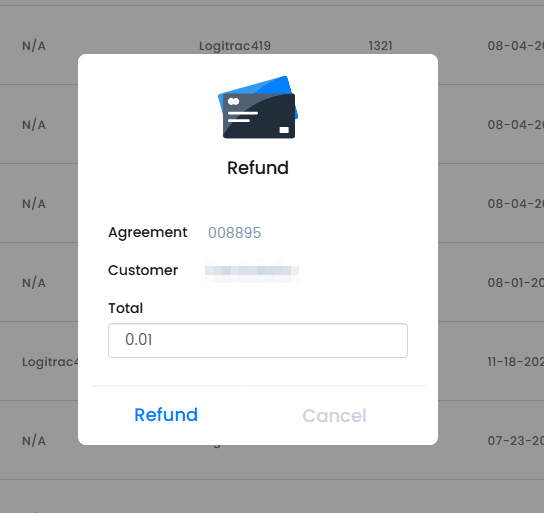
-
Add Notes: Optionally, add any relevant notes regarding the refund for internal tracking and auditing purposes. This might include the reason for the refund or any customer communication that has occurred.
Step 4: Confirm and Process Refund
-
Review Details: Double-check the refund amount and any notes to ensure accuracy.
-
Process Refund: Confirm the refund by clicking on a ‘Confirm’, ‘Process’, or similar button. This action will finalize the refund and should trigger an update in the system’s financial records.