Step 1: Open the Administration Menu
- Log in to your Logitrac account.
- Select Administration from the navigation bar at the top of the screen.
- Select Manage Users from the Administration menu.
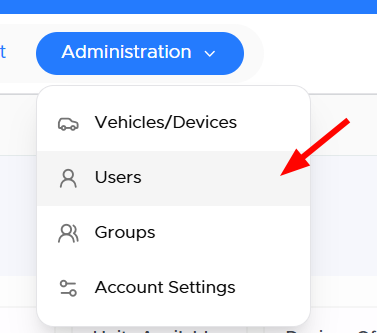
Use the search field or scroll through the user list to locate the person whose password needs to be reset.
Before continuing, confirm that you have selected the correct user and that the email address associated with the profile is accurate.
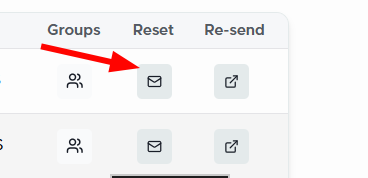
Step 3: Send the Password Reset EmailSelect the password reset email option located in the user’s row. This may be represented by an envelope icon.
Logitrac will send a password reset email to the email address associated with the user’s profile.
Let the user know that the reset email has been sent. The user should:
- Open the password reset email.
- Select the provided reset link.
- Create and confirm a new password.
- Return to the Logitrac login screen.
- Sign in using the new password.
If the email does not appear, ask the user to check their spam or junk folder and confirm that the email address on their Logitrac profile is correct.