Accessing Vehicle Information
-
Log In to Logitrac:
-
Enter your credentials to access the Logitrac dashboard.
-
-
Navigate to Mapping Screen:
-
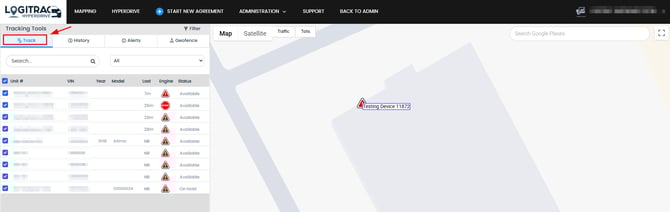
From the main menu, select the "Mapping" tab to navigate to the tracking screen on Logitrac.
-

Selecting a Vehicle to Retire
-
Locate the Vehicle:
-
Use the search bar or scroll through the list to find the vehicle you want to retire.
-
-
Open Vehicle Details:
-
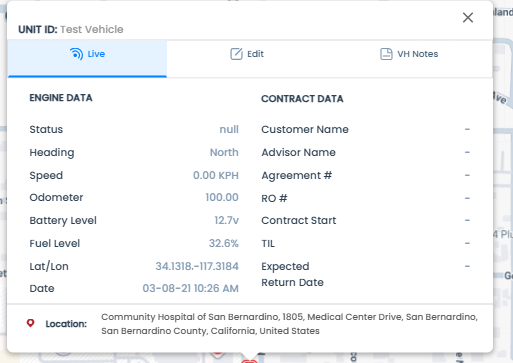
Click on the vehicle to open its details page on the map.
-

Retiring the Vehicle
-
Enter Edit Mode:
-
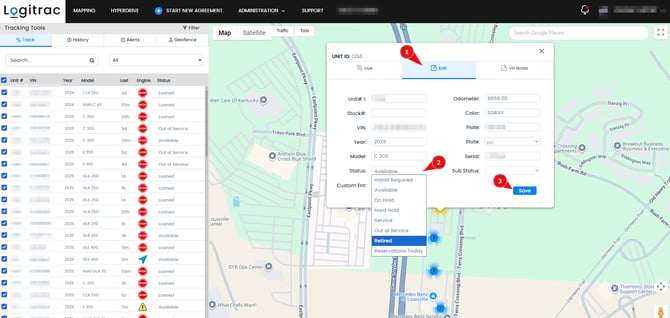
On the vehicle details page, click the "Edit" button to enable editing mode.
-
-
Change Vehicle Status:
-
Find the "Status" dropdown menu.
-
Select "Retired" from the options.
-
-
Save Changes:
-
Click the "Save" button to apply the status change.
-
-
Confirm Retirement:
-
A confirmation message will appear indicating that the vehicle has been successfully retired.
NOTE: To view a list of retired assets and their specific retirement dates, please refer to the Historical Vehicle Log report. While these vehicles are no longer in your active inventory, you can still locate all associated past contracts by searching the VIN, Plate, or Vehicle ID within the Closed or All Agreements tabs.
-
