Step 1:
Go to the reports tab and click on damage history report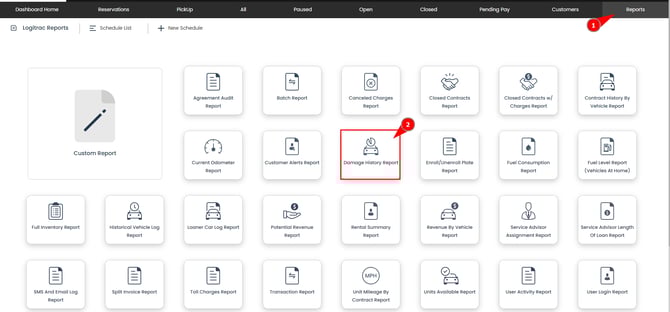
Step 2:
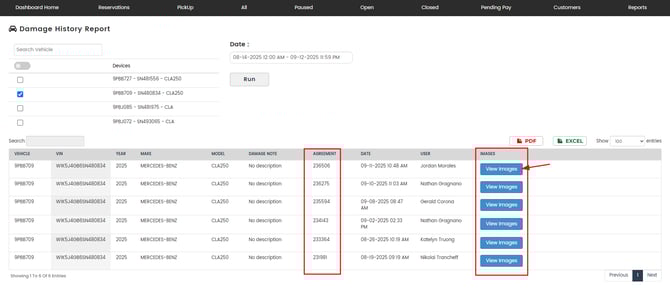
Search the vehicle you would like to see the photos for, and set a date range relative to the contract itself. Once you have those fields chosen, click "Run."

Step 3:
Once you have identified the vehicle, double check that the agreement is correct with the photos you are trying to receive & click "View Images"