1. Log in to Logitrac
-
Open your web browser and go to the Logitrac login page.
-
Enter your username and password.
-
Click the Log In button.
2. Navigate to the Payments Section
-
From the Logitrac dashboard, click on the Administration Tab -> Account Settings.
3. Enable Automatic Payments
-
Toggle the switch next to Automatic Payments to the "On" position.
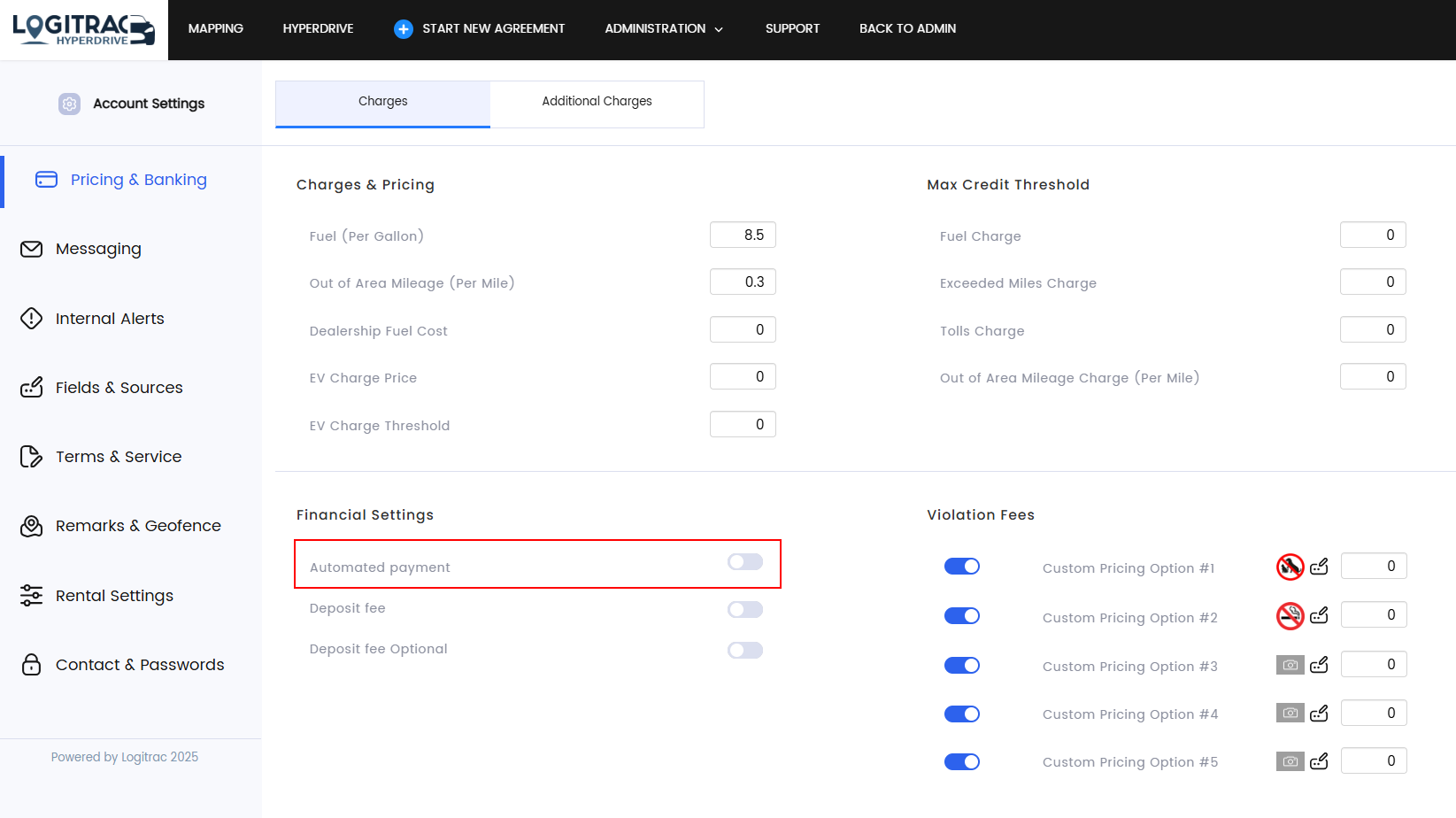
*This will charge every contract that has an amount owed once it is closed regardless if you press close/close & charge*

4. Configure Payment Details
-
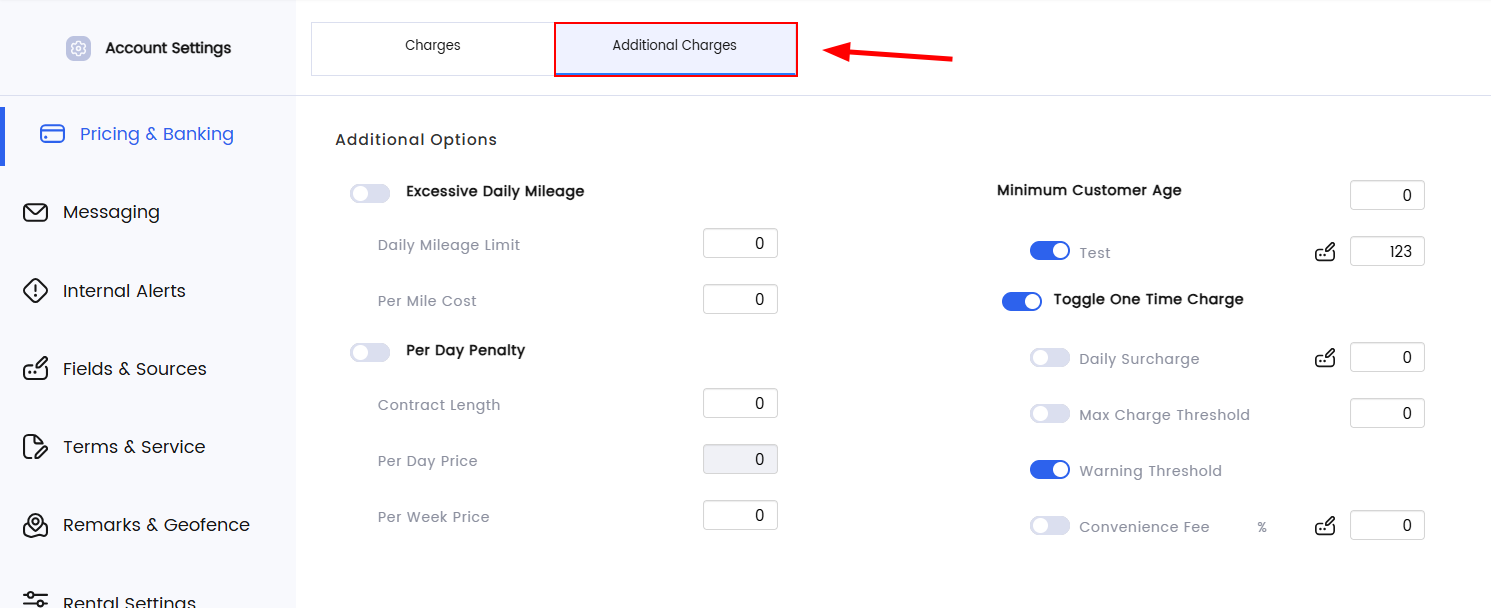
Navigate to Additional Charges tab on Pricing & Banking tab.
-
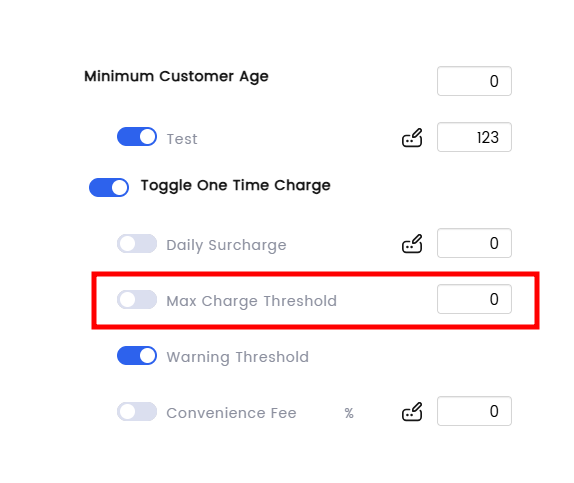
Locate the 'Max Charge Threshold' tab. This will enable you to see a max amount that the system will automatically charge. Anything over this amount will still get sent to a 'review' status in the pending pay tab.


6. Review and Save Settings
-
Carefully review all the entered information to ensure it is correct.
-
Click the Save Settings button to activate the automatic payments.