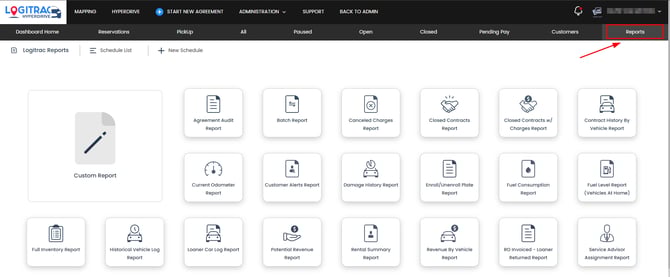
- Navigate to the Reports Tab
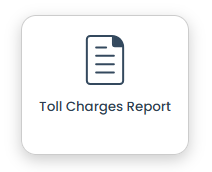
- Click on Toll Charges Report.
- Now that you're on the report, you can filter by Date and Search for the tolls by Customer Name, License Plate, or Agreement Number.
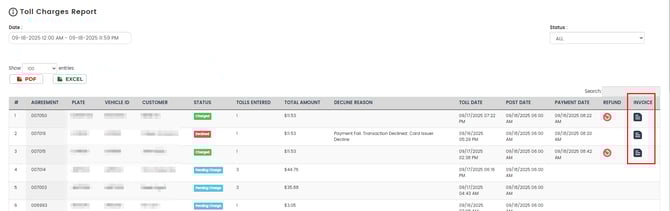
- The Status column will have four different status:
- Charged - Customer has been charged for the Toll
- Declined - Customer's credit card was declined. The Declined Reason will provide a reason. Our system will re-attempt to charge the customer's 3 times after the first declined. You can also manually collect the amount by clicking on the Declined status and it will bring up a payment pop up.
- If the Declined Toll isn't collected before the next Billing cycle the Dealership will be billed for the toll.
- If you Mark as Paid, on a Declined Toll, that is indicating that the dealership had collected the payment for the toll outside of the platform. Logitrac will still bill the Dealership for the toll because it wasn't collected through the platform.
-
- Pending Charges - The system is processing the tolls to link up to the correct agreement. This process typically takes 24 hours from the time the tolls are posted.
- Dealer Owes - A toll will end up as Dealer Owes if the vehicle isn't in an agreement at the time of the vehicle running through the toll gantry. The Dealership will be billed for Dealer Owes toll charges.
- You can select the Invoice Icon on the far right to view when the vehicle had pass through a toll gantry.