Steps to Change Vehicle Status Using the Mapping Screen:
-
Navigate to the Mapping Screen:
-
Log in to your Logitrac account.
-
From the dashboard, go to the Mapping section.
-
-
Select an Available Vehicle:
-
Click on any vehicle that is currently available on the map.
-
-
Edit Vehicle Information:
-
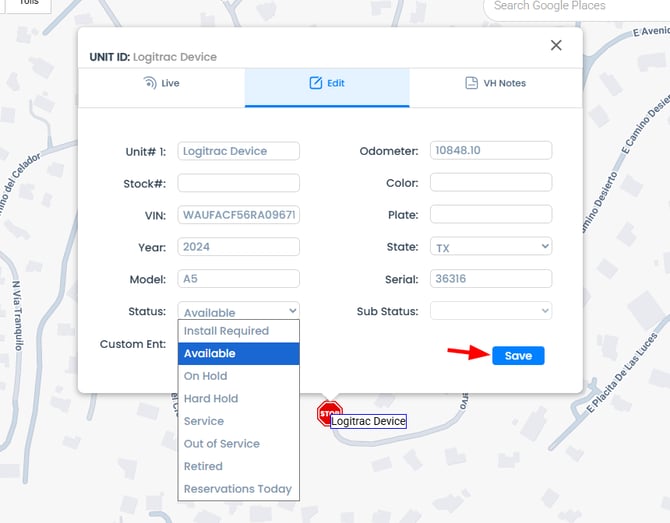
Once the vehicle is selected, click on the Edit button.
-
-
Change the Status:
-
A dropdown menu will appear within the editing options.
-
Click on the dropdown and select the desired status for the vehicle.
Some of the default status that you can choose from include On Hold, Hard Hold, and Out of Service.
-
-
Save Changes:
-
After selecting the appropriate status, click on Save to apply the changes.
-

Steps to Change Vehicle Status Using the Administration Tab:
-
Access the Administration Tab:
-
From the dashboard, navigate to the Vehicle and Devices section under the Administration tab.
-
-
Select an Available Unit:
-
In the list of units, choose the one you want to update.
-
-
Edit Unit Information:
-
Click on the Edit button next to the selected unit.
-
-
Change the Status:
-
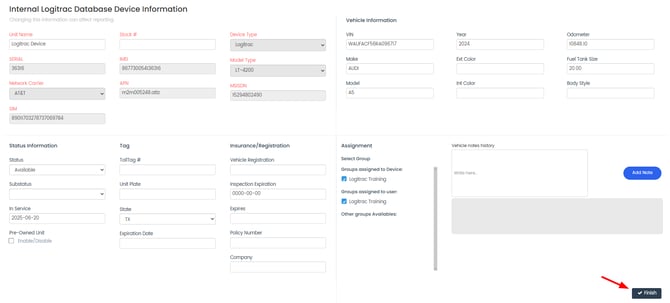
Locate the status information within the edit options.
-
Use the dropdown menu to select the appropriate status.
-
-
Finish and Save:
-
Once you’ve made the selection, click Finish to save the changes.
-
