- Log in to your Logitrac account.
- Select HyperDrive from the navigation bar at the top of the screen.
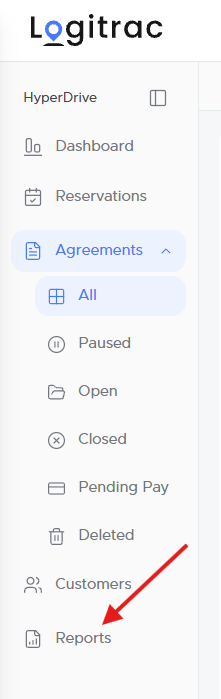
- Select Reports from the HyperDrive sidebar.
The Reports screen will display the reporting options available for your account.
The Reports section contains several default reports designed to support common dealership needs.
Available reports may include information related to:
- Agreements
- Customers
- Vehicles
- Fleet utilization
- Financial activity
- Payments and charges
- Toll activity
- Vehicle history
- User activity
The reports available to you may vary based on your account configuration, enabled products, and user permissions.
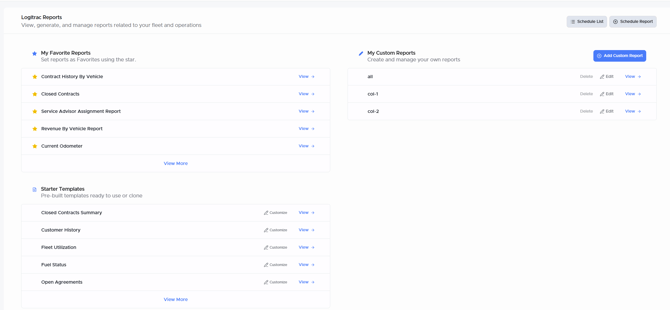
- Locate the report you want to review.
- Select the report to open it.
- Use the available filters to narrow the results.
- Apply your selections to update the report.
Available filters may include:
- Date range
- Agreement status
- Vehicle
- Customer
- Service advisor
- User
- Vehicle status
- Other report-specific options
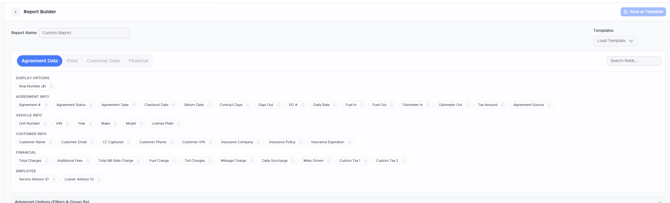
If the default reports do not provide the information you need, use the available custom reporting option.
- Select the option to create a custom report.
- Choose the data fields you want to include.
- Apply the desired filters.
- Review the report results.
- Save or export the report when applicable.
Depending on the selected report, you may have the option to export its results as a PDF or Excel file.
Before exporting, confirm that the correct filters and date range have been applied.
Scheduling Automated ReportsReports can also be scheduled for automatic delivery by email on a recurring basis.
For instructions, refer to the How to Schedule Reports article:
If you cannot access a report or need assistance building a custom report, contact Logitrac Support.